History
Introduction
Functionality of history data in B2B-console covers following features, available for user:
- • Event list of completed events: "Archive" which includes not active, ended events ever booked
- • Event monitor: event view of ended event with available details (including timeline of odds changes)
- • History data of the events: possibility to view and download respective messages (json-format) for event updates, market updates and scoreboards history
All related information could be found in chapters below
1. Archive Event List
Functionality allows to see ended (not active) events ever booked by Client (even if were unbooked afterwards) within 1 month depth.
Is available by pressing button "Archive" at right top corner of tab Event list:
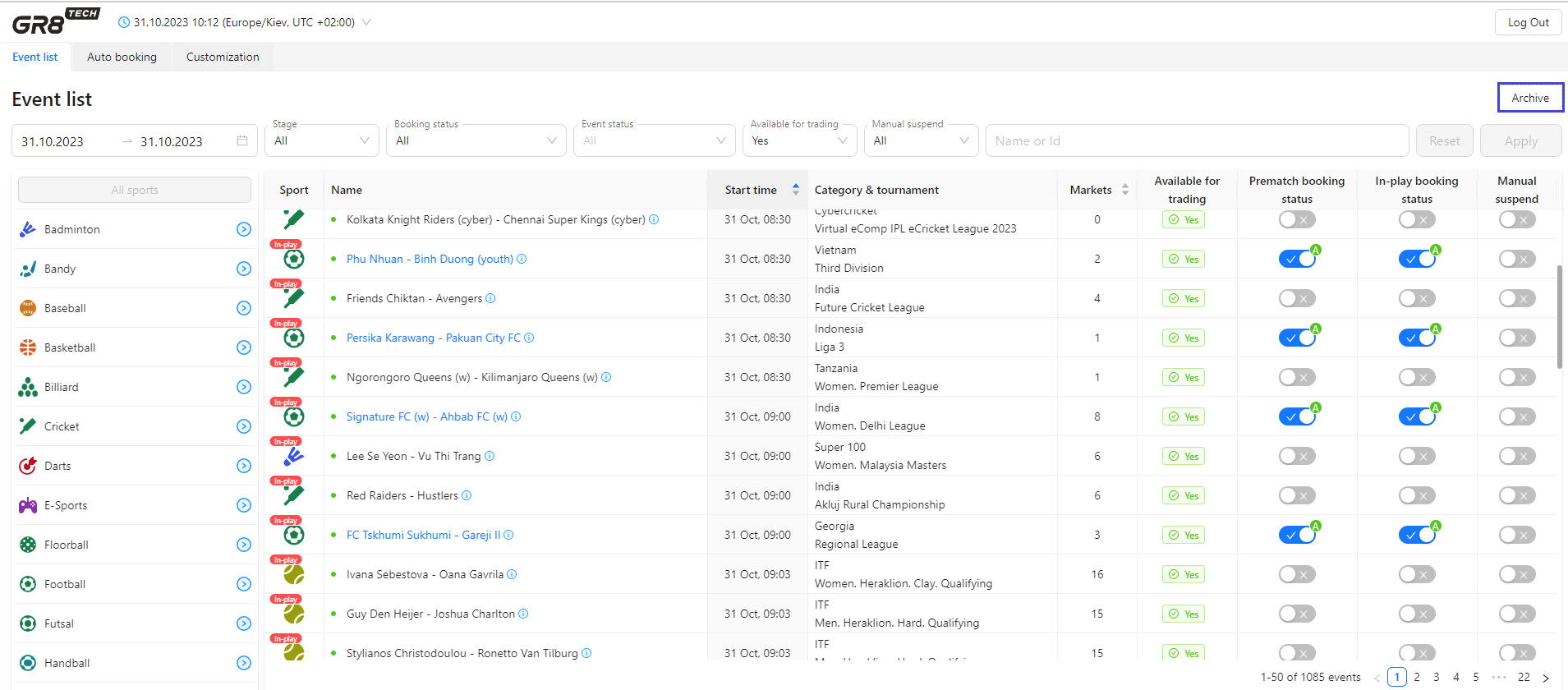
Contains list of ended events, which were ever booked. Pressing button "Back" redirects user back o Event List.
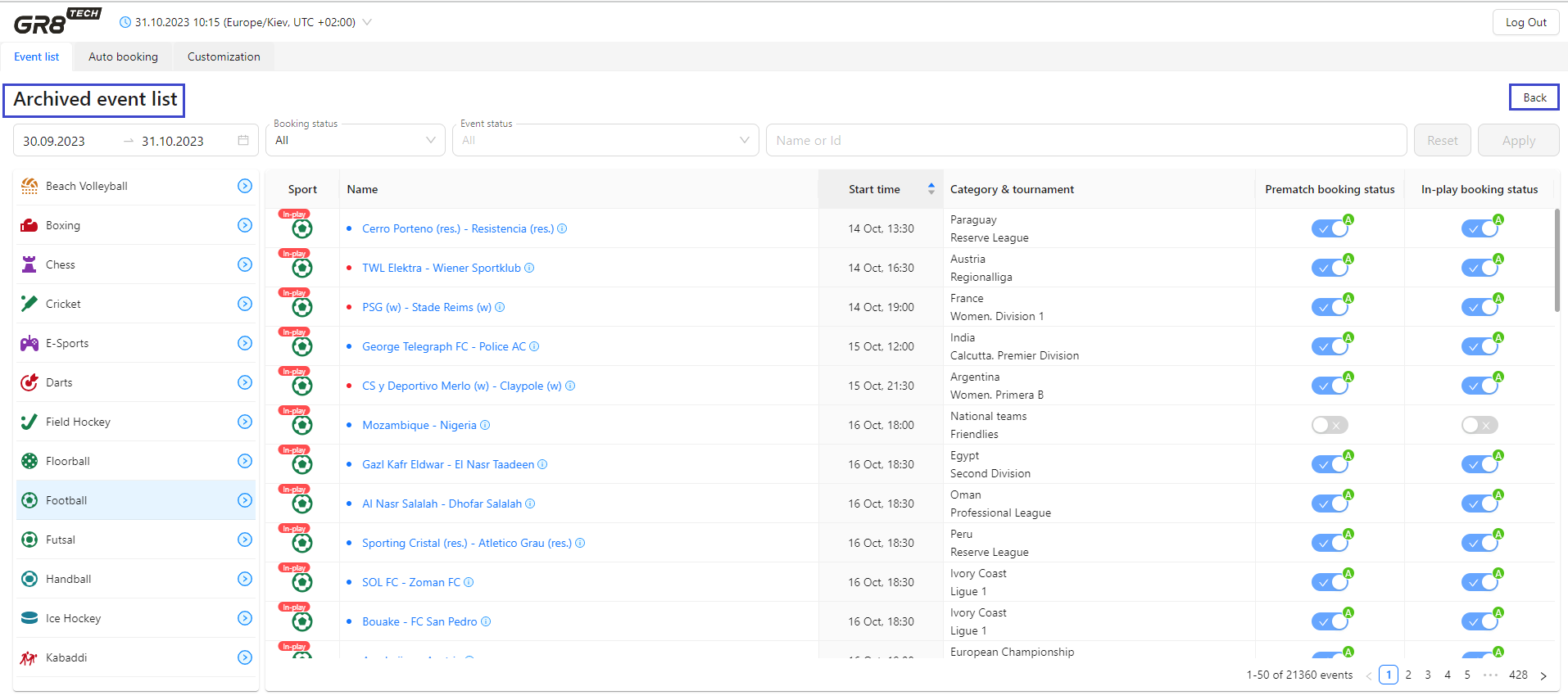
Archive event list includes:
- Sport navigation: taxonomy sidebar at left side with "hierarchical tree" Sports -> Categories -> Tournaments. Allows user to choose respective not-active fixtures (for archive events to be displayed - user should choose specific sport)
- Filters:
- Time filter. By default is set up as one month back, could be changed by user. Will show ended events according to rule: FilterStartDate <= EventStartDate <= FilterEndDate
- Booking status. Allows to get events, ever booked for any trading stage (In-play, Prematch) manually or by autobooking rules
* All: all events, ever booked (even unbooked afterwards) for any trading stage manually/automatically
* Booked for Prematch: events ever booked for Prematch stage (either only for this stage, or for both stages In-play + Prematch)
* Booked for In-Play: events, ever booked for In-play stage (either only for this stage, or for both stages In-play + Prematch)
* Booked (In-play + Prematch): events, ever booked for both stages In-play + Prematch
- Event status. Enables displaying events by their status: Finished (event is completed based on schedule and according to the regulations), Retired (refusal of one of the participants to continue the match), Abandoned ("coverage lost" for any reason), Cancelled (match cancellation for all other reasons, mostly before event start-time, incl. technical reasons)
- Name or ID. Allows searching specific event by team/player name (at least 3 characters) or EventID within chosen sport. Filter (search) for specific event. In combination with a time filter, it will give the user the opportunity to find the matches of the desired team in the required time range.
- List of filtered events: resulting list of events based on user's filters + Sports navigation will be shown as a table.
Each row of the table - separate ended event. Columns - attributes of the event (sport, name, start time, category and tournament, Prematch booking status and In-play booking status - to show if event was booked at the moment of event's completion).
For all historical events events - event details are available (Historical Event View).
2. Historical Event View
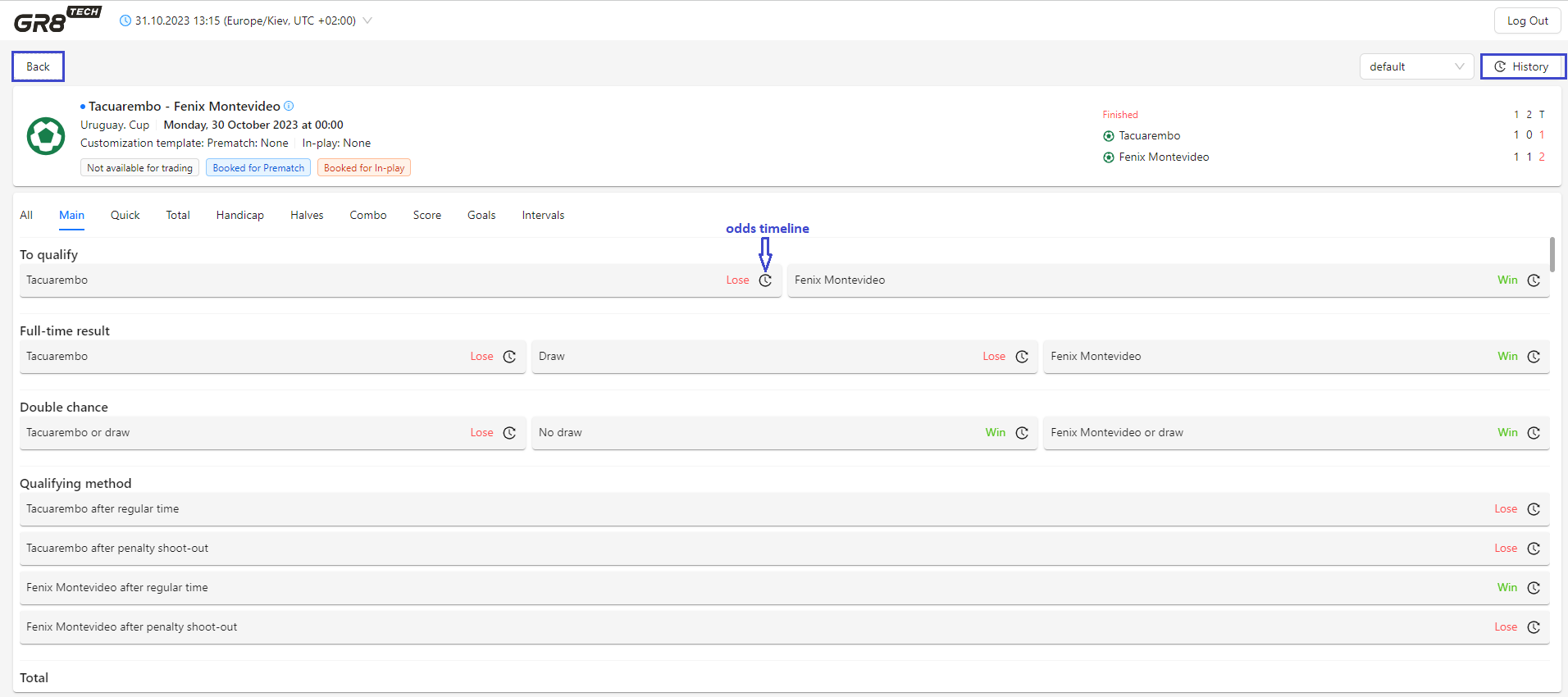
Contains information about boking statuses per trading stages, markets, odds, results, scores, periods - "last snapshot" of the information at the event's closure and history of changes.
Event View mode is available if event was ever booked (either manually or autobooked).
By clicking on the event from Archive Event List, user gets into Event View - "monitor" of the event.
To get back from Event View to the Event's list - button "Back" in upper left corner to be pressed
General view is as following:
Odds timeline
We provide functionality to track and check odds timeline. It is available by pressing watch-icon near each outcome of each resulted market.
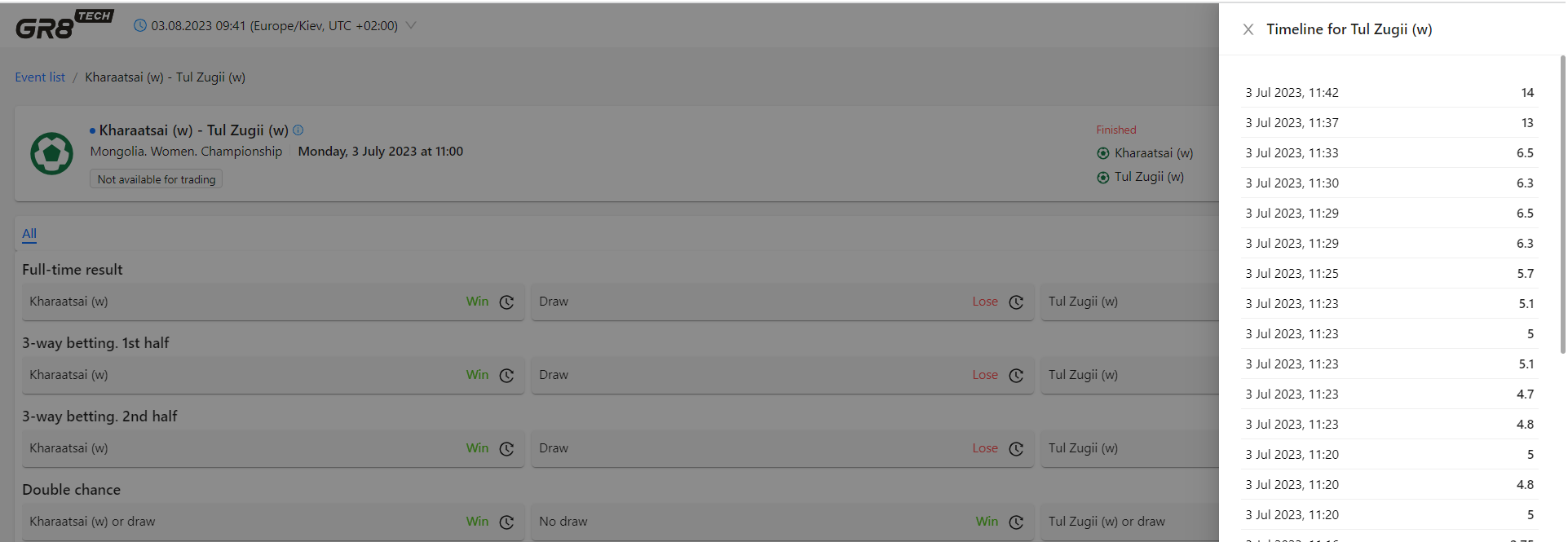
Upon pressing - odds timeline appears.
There could be following options for outcome's odds:
- most common case - no exceptions for outcome (it was open for bets accepting until resulting). In this case odds timeline is like at the screen:
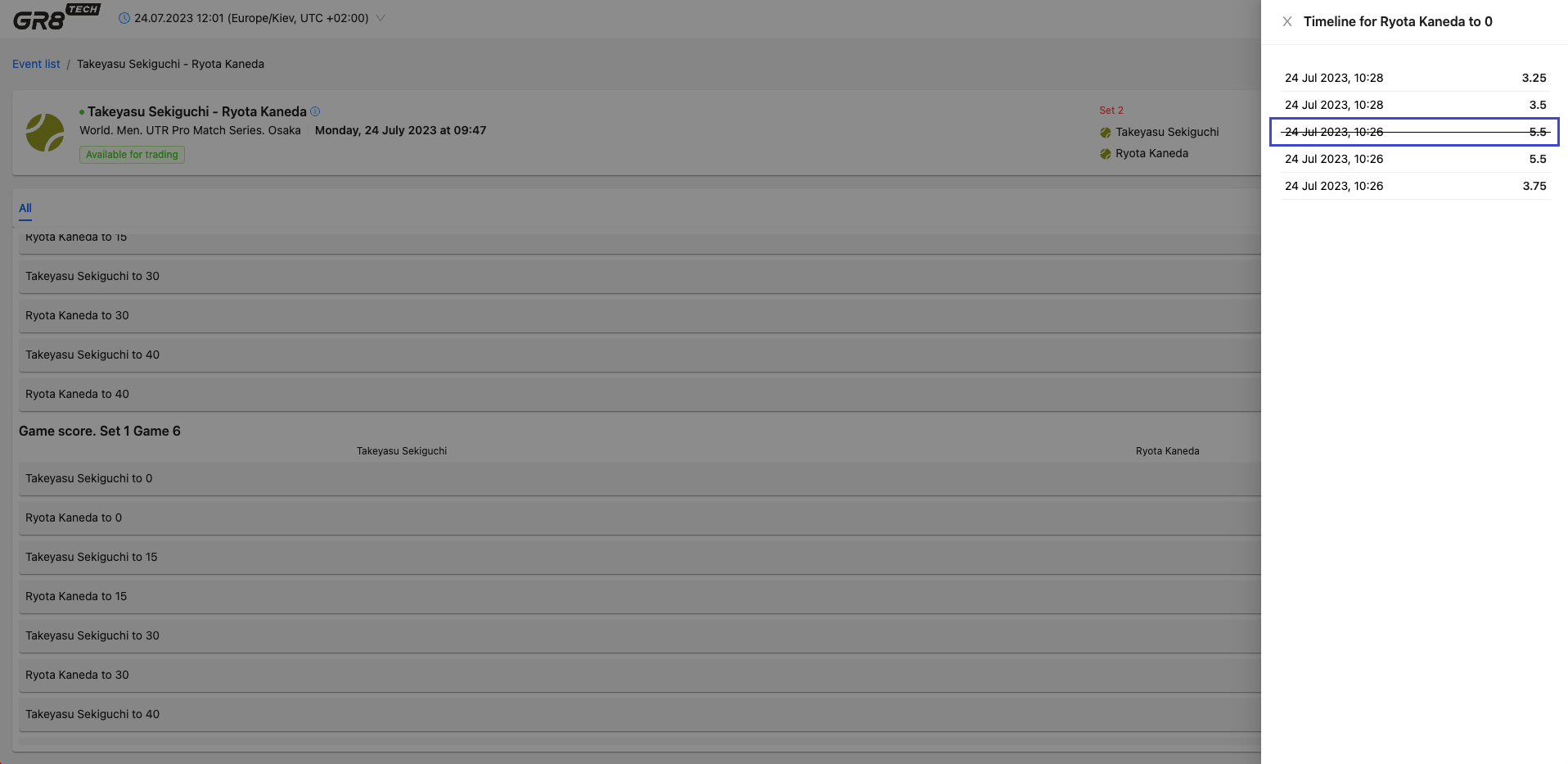
- outcome was removed - thus odd is marked as strikethrough:
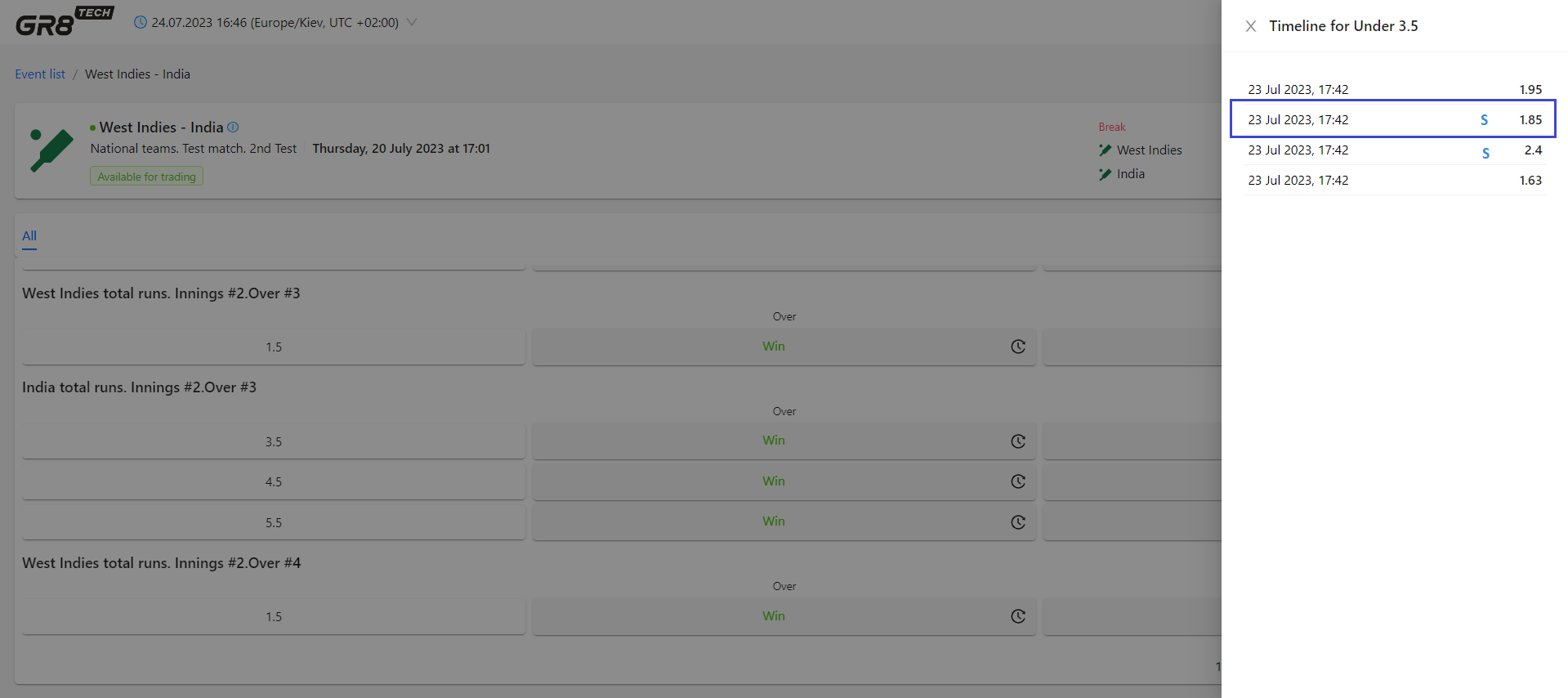
- outcome was suspended - thus odd is is marked by letter S
3. View and download history data
Besides option to review archive event's list, last snapshot of event's data and odds timeline, we also provide option to review detailed history data of the chosen event (market and event's updates and scoreboards history).
Also user can download these historical data (as json-messages) if needed for further analysis.
History data for tracking
1) Market Updates:
- odds history: market prices for all markets.
If margin customization was applied to market - odds and OddMultipliers (according to the wished margin) will be provided separately (without multiplying)
- market's status changes (including outcome status changes) - to track closure/suspension of trading for market/outcome
Data format: updates (not snapshots), json-file of MarketUpdates
2) Event updates:
- event's StartTime changes
- Event status changes
- updates for event's booking status: booking status (booked/not booked) and booking type (manual/auto). Will allow user to track whether event was booked, manual or via autobooking rules, and if it was unbooked
- updates for manual suspension of trading. Will allow user upon business necessity (abnormal bets activity) to "freeze" temporarily event's trading
- initiator of changes: feed (changes came from feed) / username (changes done by user) / autobooking rule name (changes by autobooking)
Data format: updates (not snapshots), json-file of EventUpdates
3) Scoreboards history:
- changes in scoreboards (actual updated scoreboard with timestamp) - scores, period, subperiod
- changes of game stages
- Server
Data format: snapshots (not just updates), json-file
Functionality in Console
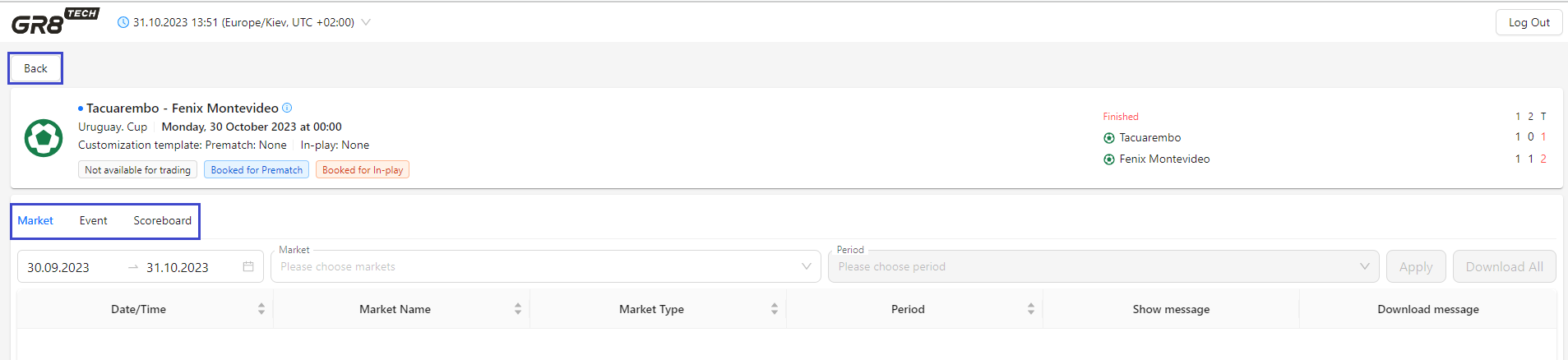
Functionality is available by pressing button "History" at right-up corner of the Event View

Separate tabs are available to check respective history data of event: Market (for market updates), Event (for event updates), Scoreboard (for scoreboards snapshots)
Market
Tab contains list of filters to define needed markets of the completed event and a table - to display chronological updates based on filter results.
To retrieve data in grid - user should set and apply filters (until that table will be empty).
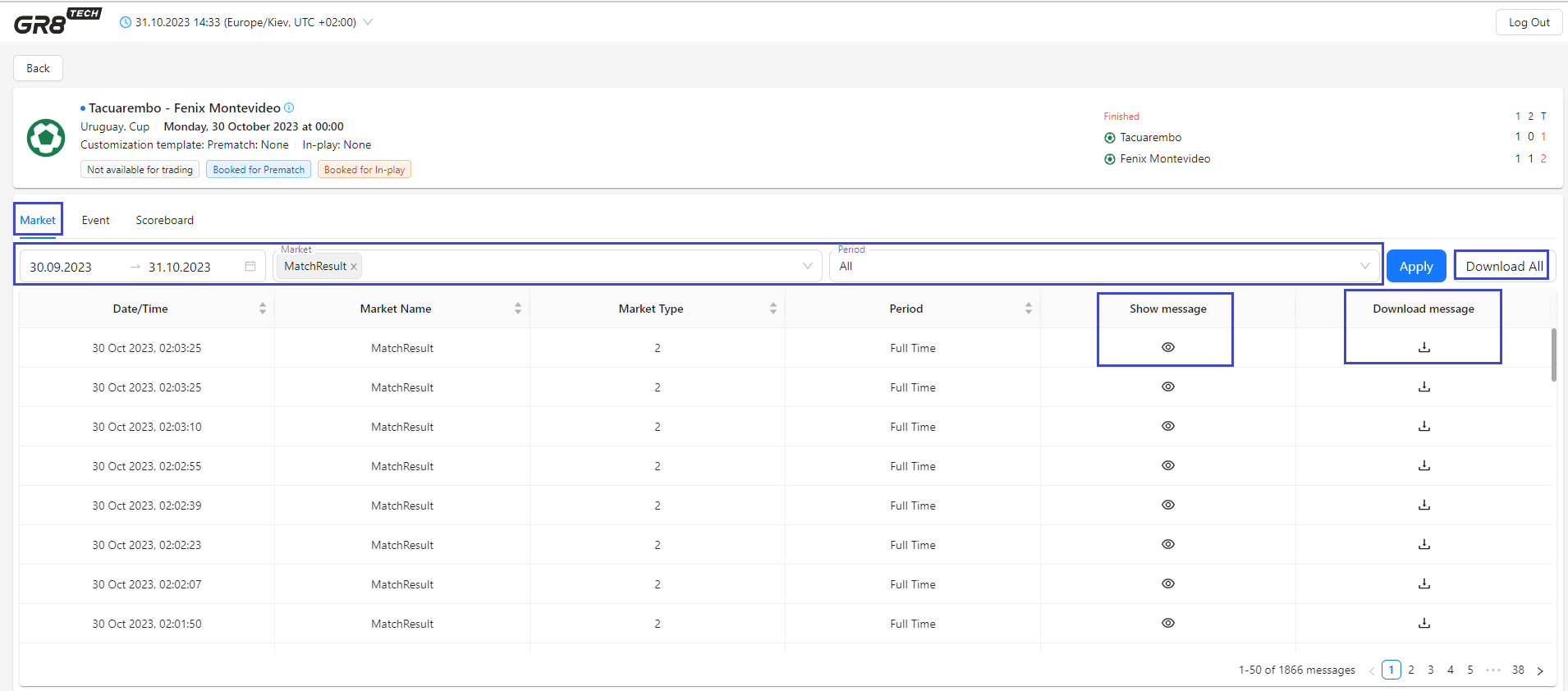
Filtering option is available:
1) Date/Time (mandatory filter)
To check updates done at mentioned by user time-period
2) Market (mandatory filter)
User chooses specific value in field "Market name" to get updates for this market
Market Name field format: multiselect (selection of several markets is allowed)
3) Period (mandatory filter)
Drop-down list of periods for user's choice. Value "All" is available as well - to check updates for all periods
By default, until user didn't set up filters - table is empty (no update messages are displayed in the grid).
After user selects specific values in the filters and presses "Apply" button - corresponding updates for this market (markets) are displayed chronologically according to the filters set.
Each row in grid represents some market update.
The following attributes of market's updates are available to the user (as table columns):
- Date/Time
- Market Name
- Market type (ID)
- Period (name)
- Show message (clickable icon). When user clicks it, the corresponding json-file is displayed for viewing the update details
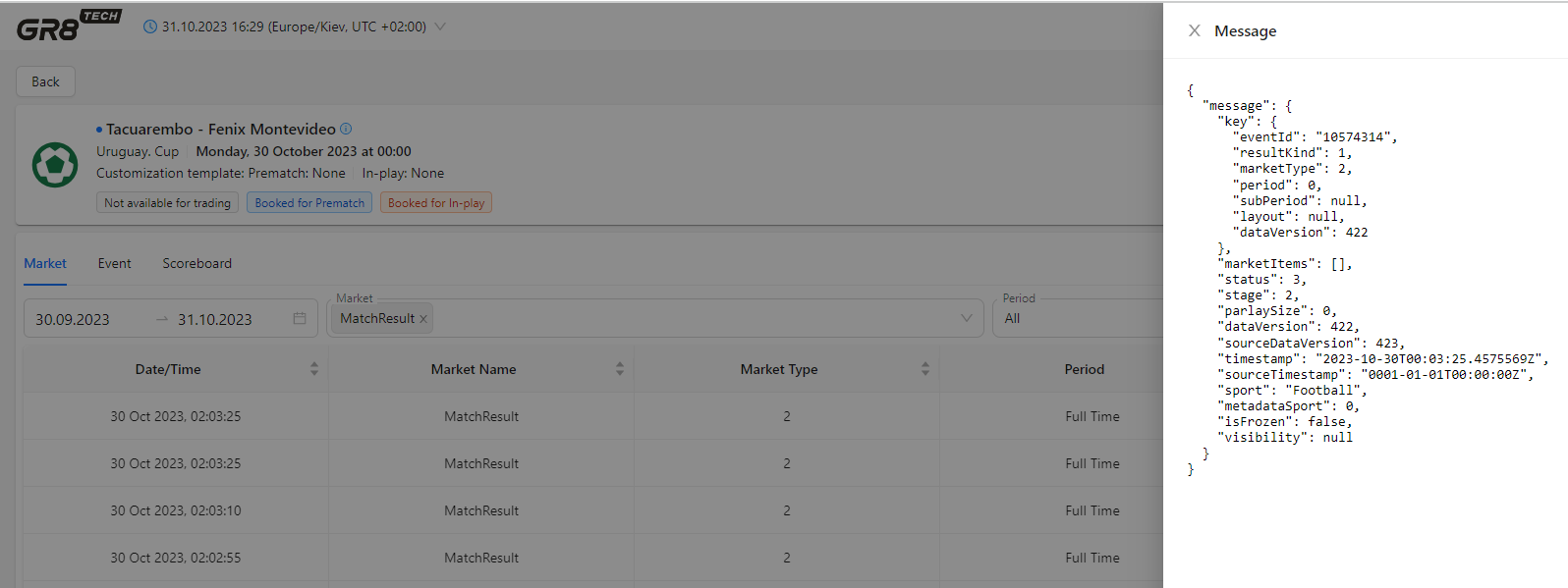
- Download message (clickable icon). When user clicks it, the corresponding json file (named like "market + updates dates") is downloaded
The asc/desc sorting option is available by columns: Date/Time, Market Name, Market type, Period
Also bulk download option is available - allows to download all messages according to the selected filters.
In this case, the user selects by filters market names, dates, periods, clicks the stand-alone button "Download All" (at right up corner), and after confirmation request from system ("Are you sure to download all messages for selected filters?") - zip file containing all json messages (according to filters set) is downloaded.
Event
Tab contains a table with chronological updates of the completed event.
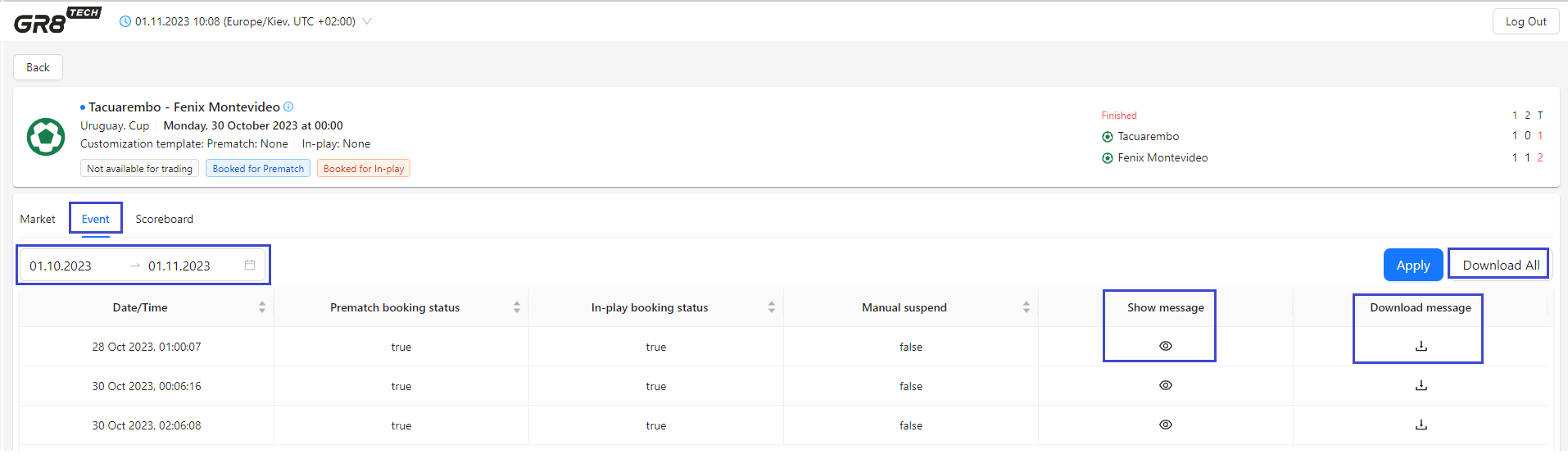
Filtering option is available for Date/Time (mandatory filter) - to check updates happened at mentioned by user time-period
Each row in grid represents some event update.
The following event update attributes (table columns) are available to the user:
- Date/Time: timestamp of the update
- Prematch booking status: true/false
- In-play booking status: true/false
- Manual suspend ("frozing" of the event's trading by user's decision): true/false
- Show message (clickable icon). When user clicks it, the corresponding json-file is displayed for viewing the update details
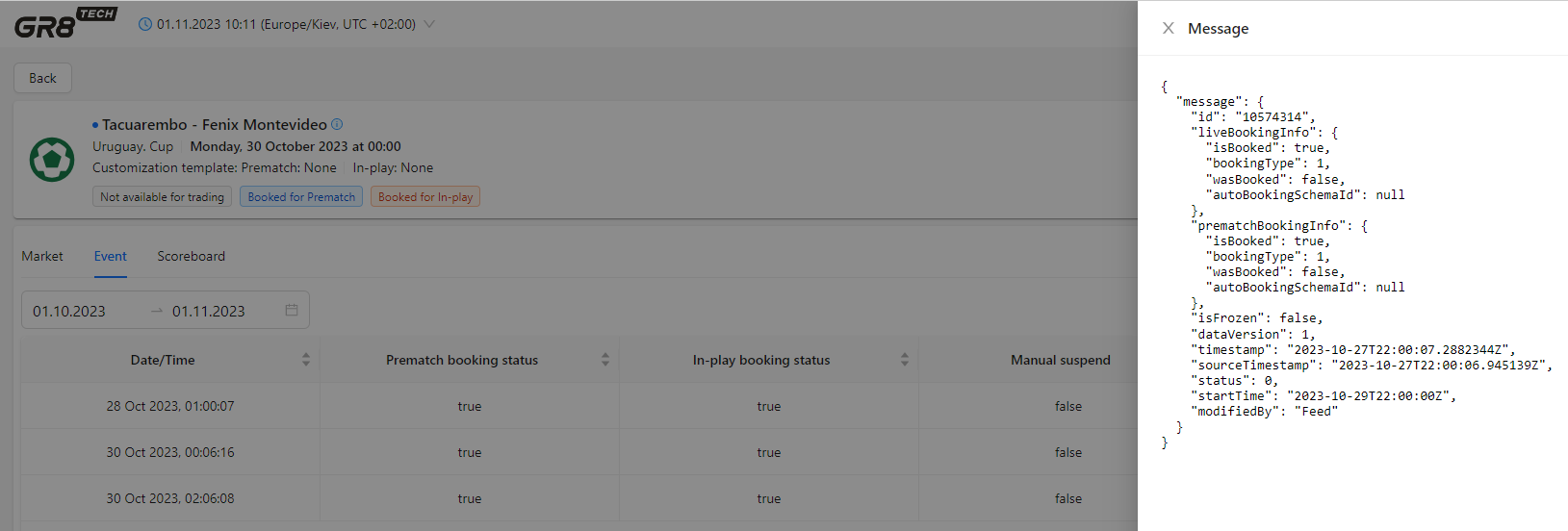
- Download message (clickable icon). When user clicks it, the corresponding json file (named like "event+ updates dates") is downloaded
The asc/desc sorting option is available by columns: Date/Time, Prematch booking status, In-ply booking status, Manual suspend
Also bulk download option is available - allows to download all messages according to the selected filter.
In this case, the user selects needed time-range in filter, clicks the stand-alone button "Download All" (at right up corner), and after confirmation request from system ("Are you sure to download all messages for selected filters?") - zip file containing all json messages (according to filters set) is downloaded.
Scoreboard
Tab contains a table with chronological history of the scoreboards of the completed event.
SCREEN!!!
Filtering option is available:
- Date/Time (mandatory filter): to check scoreboards history within mentioned by user time-period
- currentGameStage (mandatory filter): drop-down list contains names of the scoreboard periods (not IDs), including value "All" (to retrieve whole history)
Each row in grid represents scoreboard snapshot actual for the moment of time.
The following attributes of scoreboards history are available to the user (table columns):
- Date/Time (timestamp of the snapshot)
- currentGameStage (name of scoreboard's period)
- Show message (clickable icon). When user clicks it, the corresponding json-file is displayed for viewing the update details
SCREEN!!!!!
- Download message (clickable icon). When user clicks it, the corresponding json file (named like "score+ updates dates") is downloaded
The asc/desc sorting option is available by columns: Date/Time та СurrentGameStage.
Also bulk download option is available - allows to download all messages according to the selected filters.
In this case, the user selects by filters dates and game stage, clicks the stand-alone button "Download All" (at right up corner), and after confirmation request from system ("Are you sure to download all messages for selected filters?") - zip file containing all json messages (according to filters set) is downloaded.