How to?
1. Log In
User enters his credentials. System performs authentication, using entered username and password:
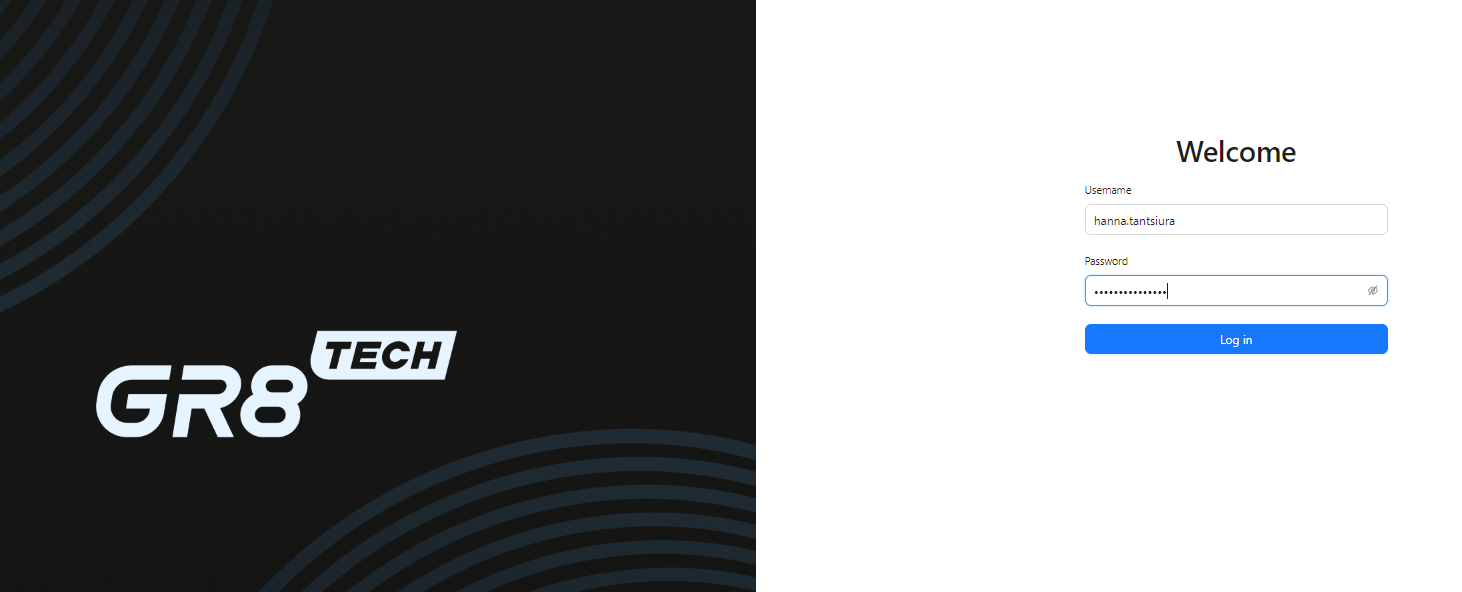
After authentication passed, user gets into Management Console with role/permissions based on authorization.
Having no activity in Console - user will be forced to log out after restricted time.
To Log Out - right up corner button "Log Out" to be used
2. Event List
Tab contains whole flow of Sport Events, available for booking and trading.
Has blocks of:
1) UTC-zone selection
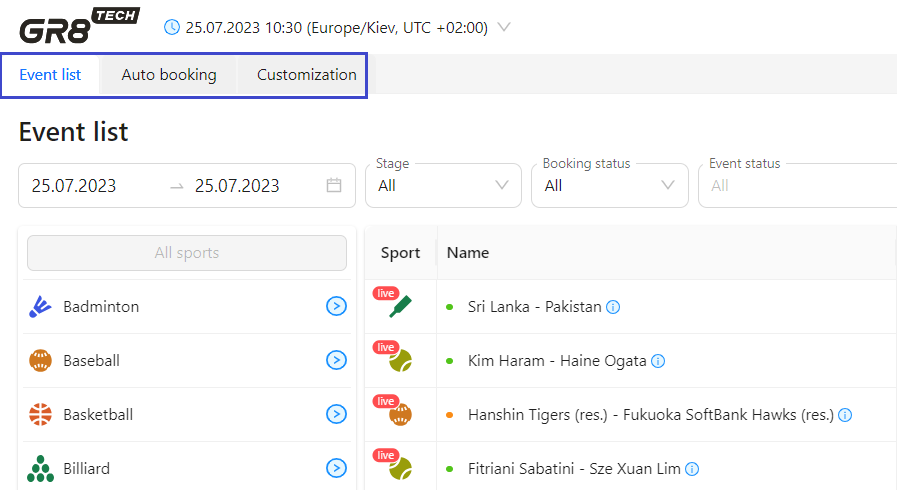
2) Choosing Tabs: Event List, Auto Booking, Customization
3) Sports navigation
4) Filters/search
5) List of filtered events
6) Archive
2.1. UTC-zone selection
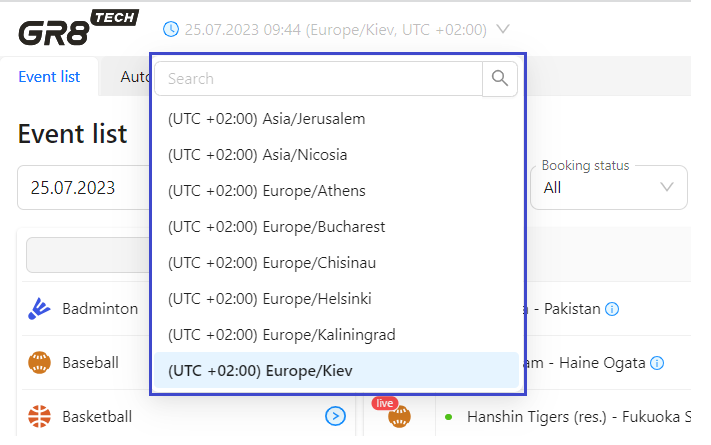
Allows user to select UTC-zone to operate.
Drop-down list contain all available time-zones. Search option is available.
Events' start date and time will be recalculated based on user's choice. List of displayed events will be updated accordingly
2.2. Event List Tab / AutoBooking Tab / Customization
Switching Tabs for functionality of:
- fixture view, displaying events for In-Play / Prematch trading, filtering, manual booking/unbooking per event, suspension of the event's trading, getting to history data (Tab "Event List"). Detailed description is below
- automatically "batch" booking using Sports, Categories, Tournaments, trading stage - via creation of respective autobooking rules (Tab "Auto booking"). Detailed description is in separate document Booking and autobooking description
- feed customization by client's needs: templates for sports, tournaments and events for customization of the brands, markets' list, margin, limits, delays (Tab "Customization"). Detailed description is in separate document "Feed Customization"
2.3. Sports Navigation
1. All events are grouped by "hierarchical tree" Sports -> Categories -> Tournaments. They are displayed at the left side-bar.
2. By clicking on chosen Sport – drop-down list of Sport's available Categories appears.
By clicking on chosen Category – drop-down list of available Tournaments in this Category is displayed
By clicking on Tournament – list of respective active events is displayed
3. Sports / Categories / Tournaments are shown in alphabet order. Each Sport has its own logo
4. Displaying of the "higher-level" sport entity depends on existence of the "child" entities underneath. Means:
- - Sport is available in navigation, if there is at least one available Category underneath (at least one active event is available in this Sport)
- - Category is available in navigation, if there is at least one available Tournament in this Category (at least one of it’s Tournaments has at least one active event).
- - Tournament is available in navigation, if there is at least one event of this Tournament, active and available for booking (event exists in trading feed)
Thus, “empty” Sports / Categories / Tournaments (having no available events) – are absent in Sports Navigation. Unless any respective available event will appear.
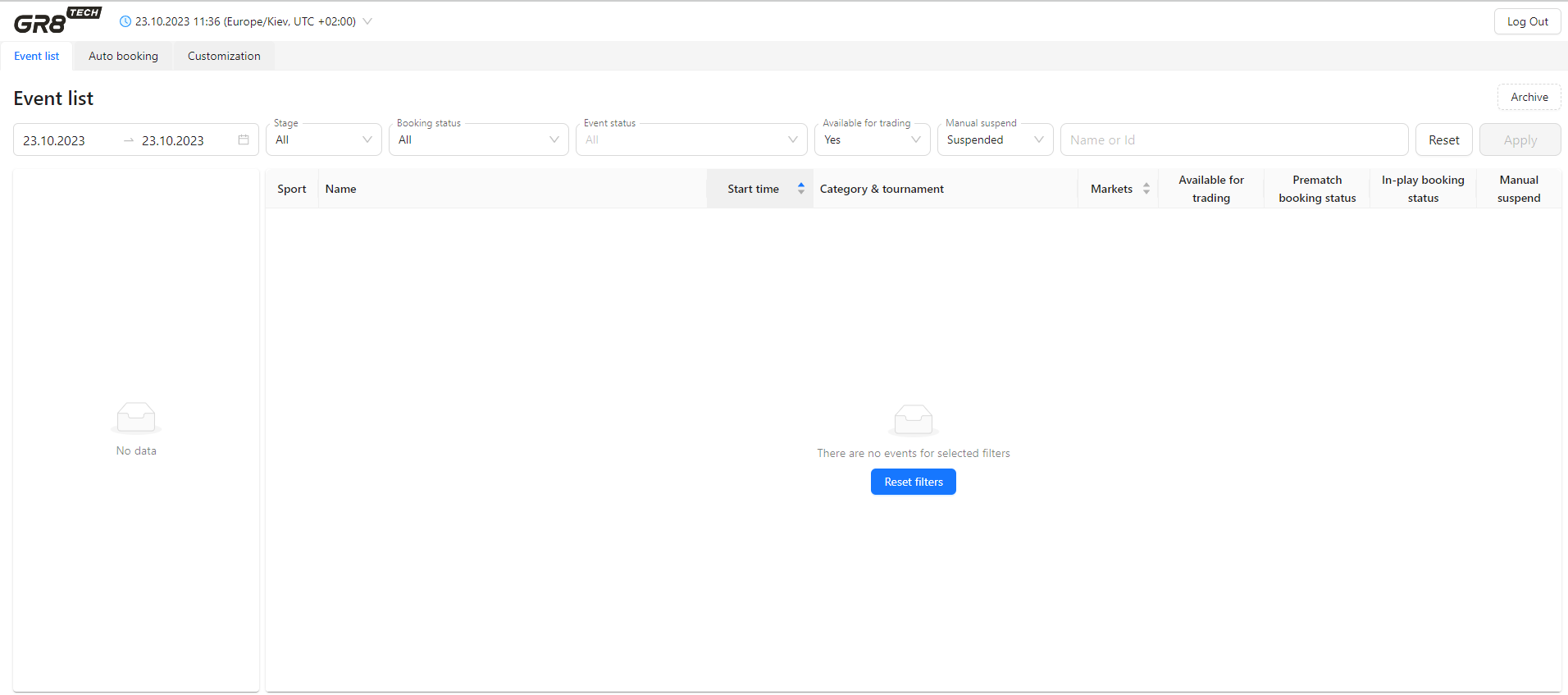
As a result - left-side bar will contain only those Sports, Categories and Tournaments, which contain events according to the filter set. For other cases - respective message will be displayed "There are no events for selected filters"
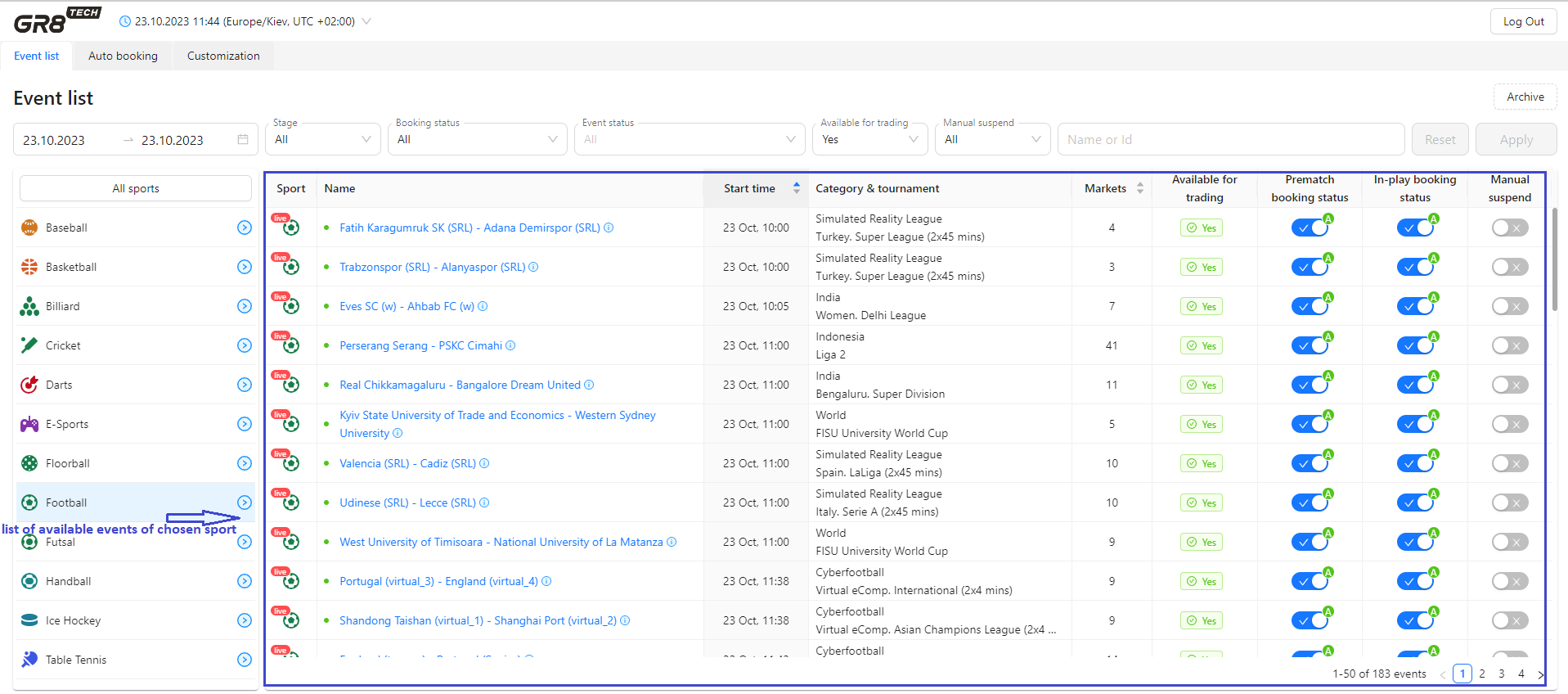
5. Sport navigation could be used for filtering events by Sport / Category / Tournament
6. Choosing Sport at left side-bar (will be light up by blue color) → will show all available active events of all Categories and Tournaments of this Sport (with filters applied, if any).
Choosing Category at left side-bar (will be light up by blue color) → will show all available active events of all Tournaments of this Category (with filters applied, if any).
Choosing Tournament at left side-bar (will be light up by blue color) → will show all available active events of this Tournament (with filters applied, if any).
Pagination will be applied (50 events per sheet)
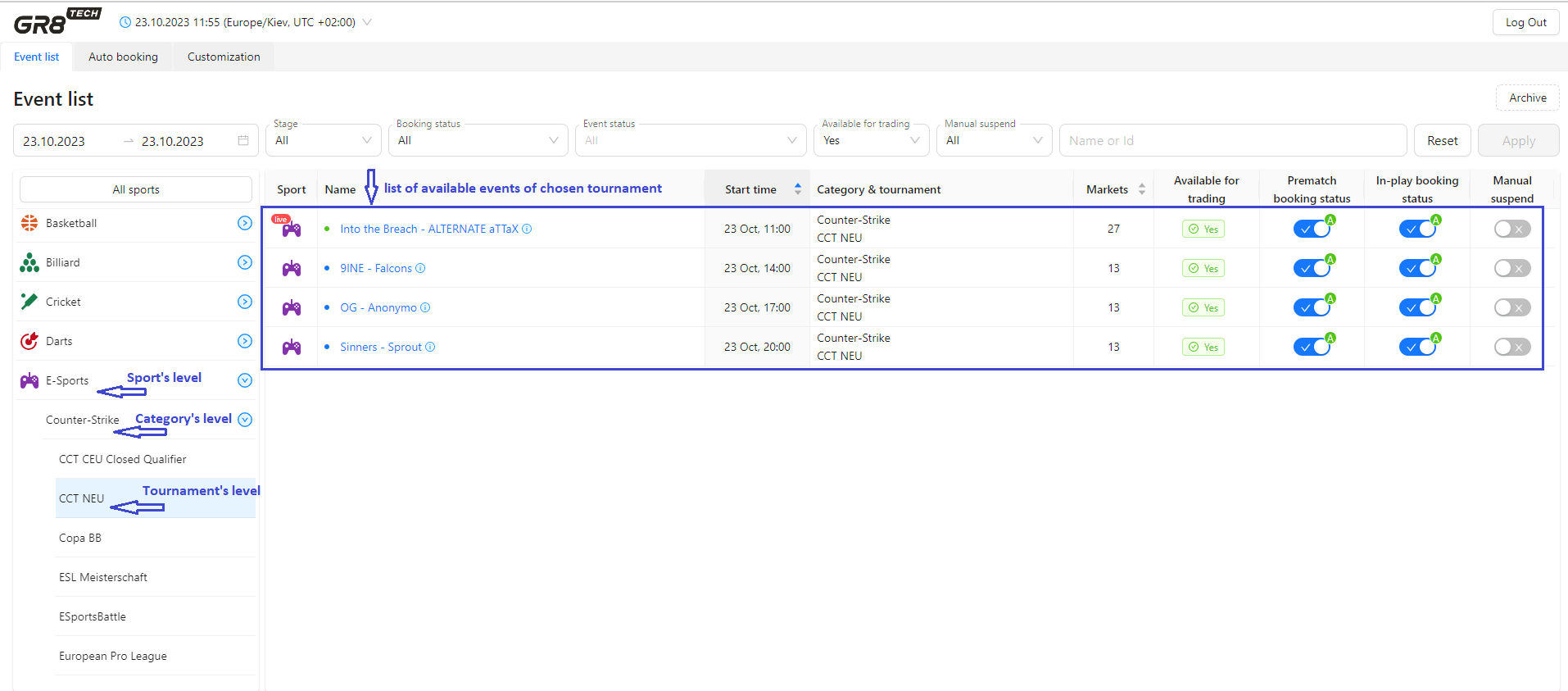
7.Pressing the arrow in front of Sport → will open drop-down list of all available relevant Categories of this Sport
Pressing the arrow in front of Category → will open drop-down list of all available relevant Tournaments of this Category
Second pressing to the arrow closes drop-down list of Categories of Sport, and Tournaments of Category
8. "All Sports" button on the left top corner of the side-bar will result to displaying active events of all sports (with filters applied, if any).
2.4. Filters
Apart from Sport's navigation for fixtures, there is flexible user-friendly functionality of filters to manage events list (by their status, trading stage etc).

1. Time Filter "Start Date ↔ End Date"
Is used to filter events with EventStartDate by following rule: FilterStartDate <= EventStartDate <= FilterEndDate (are chosen in drop-dawn calendar).
By default FilterStartDate = FilterEndDate = CurrentDate
FilterStartDate is available for setting by user as >= CurrentDate in order to show only active events.
At the same time, there are events lasting for several days (Cricket, for example). Means, their EventStartDate could be < FilterStartDate, but they are still ongoing and not finished yet (and have stage = In-play).
As these events are still active and available for booking and trading - they also will be displayed as active, ongoing and available for user (even with EventStartDate in the past).
Thus, if EventStartDate < FilterStartDate, but events is still In-play - it will also be available in List of Events
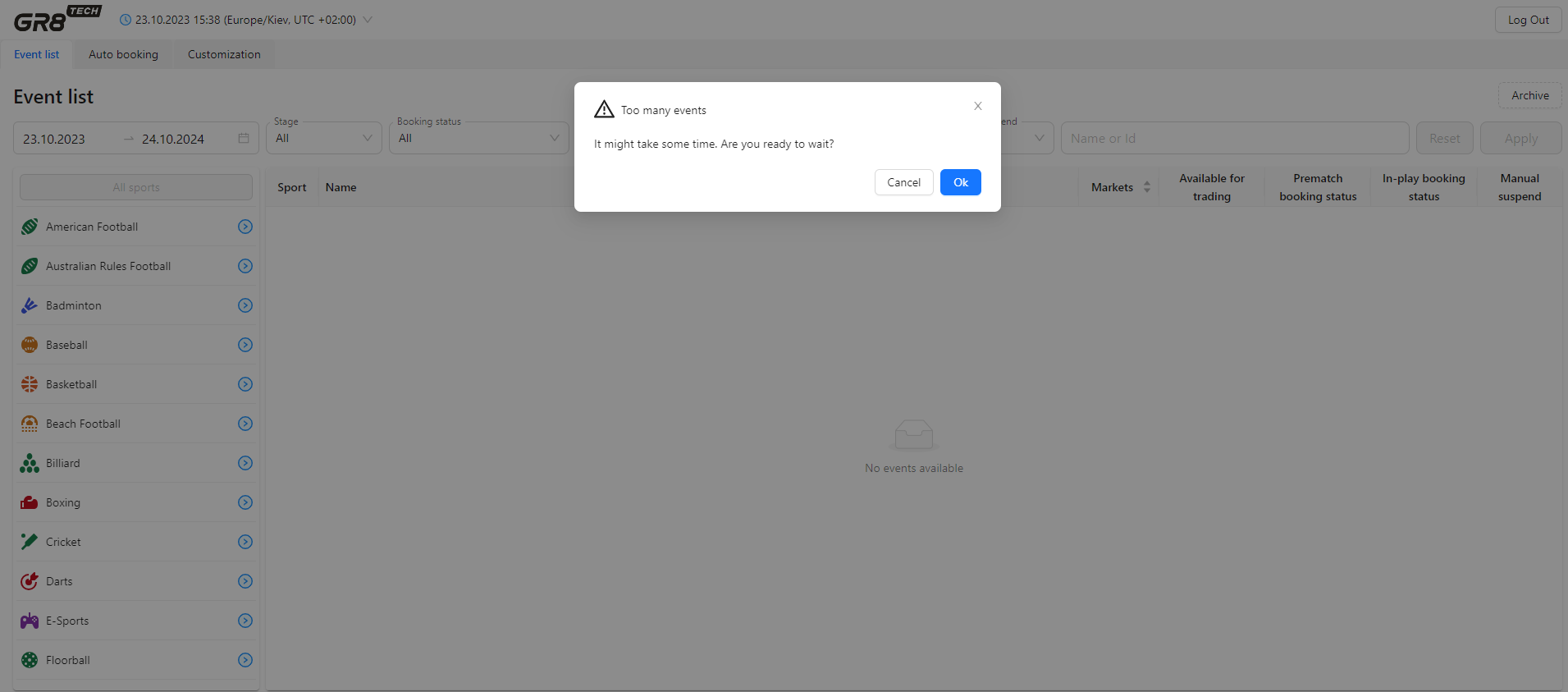
In case of too many events are fetched within defined by user period FilterStartDate<->FilterEndDate - notification pops up to inform that it might take time. User either accepts and waits (for all events to be fetched) or rejects and resets filtering (to get info shortly)
2. "Stage"
Allows to distinguish events in required trading stage.
Possible values: All, In-play, Prematch
3. "Booking status"
Is used to separate events already booked (both: manually and/or autobooked via rules) from not booked.
Possible values:
- Booked for Prematch: to display events, which are booked for Prematch stage (either only for this stage, or for both stages In-play + Prematch)
- Booked for In-Play: to display events, which are booked for In-play stage (either only for this stage, or for both stages In-play + Prematch)
- Booked (In-play + Prematch): to display events, which are booked for both stages In-play + Prematch
- Not Booked: events, not booked at all
- All: all events, despite booking status
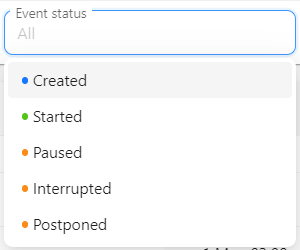
4. "Event Status"
Filter to define particular events according to their life-cylcle.
Possible values: Created (event to be in Prematch), Started (event to be In-play), Paused (scheduled break in the match), Interrupted (match interrupted due to external reason, e.g. weather conditions; to be continued), Postponed (match re-scheduled).
Event Statuses description - are described in separate doc.
5. "Available for trading"
Filter defines events, ready for trading In-play/Prematch.
Possible values: Yes, No, All
6. "Manual Suspend"
Filter defines events, manually suspended for trading according to business decision of the user.
Possible values: Suspended, Not suspended, All
7. "Name or Id"
Filter (search) for specific event. In combination with a time filter, it will give the user the opportunity to find the matches of the desired team in the required time range.
Filter accepts:
- part of team/player name. At least 3 characters to be entered. Search will be done on events' names including the string entered by the user
- event ID. Search will be done by strict match of the ID entered by the user
For user convenience, there's tooltip for this field
8. Reset (Default filters)
Pressing button "Reset" will clear up all user's filters and reset them to default values/
Default filters:
- Start Date = End Date = Current Date
- Stage = All
- Booking status = All
- Event Status = All
- Available for trading = Yes
- Manual Suspend = All
Filtration on user's request will start on pressing button "Apply", and all chosen filters are merged by rule "AND".
2.5. List of filtered Events
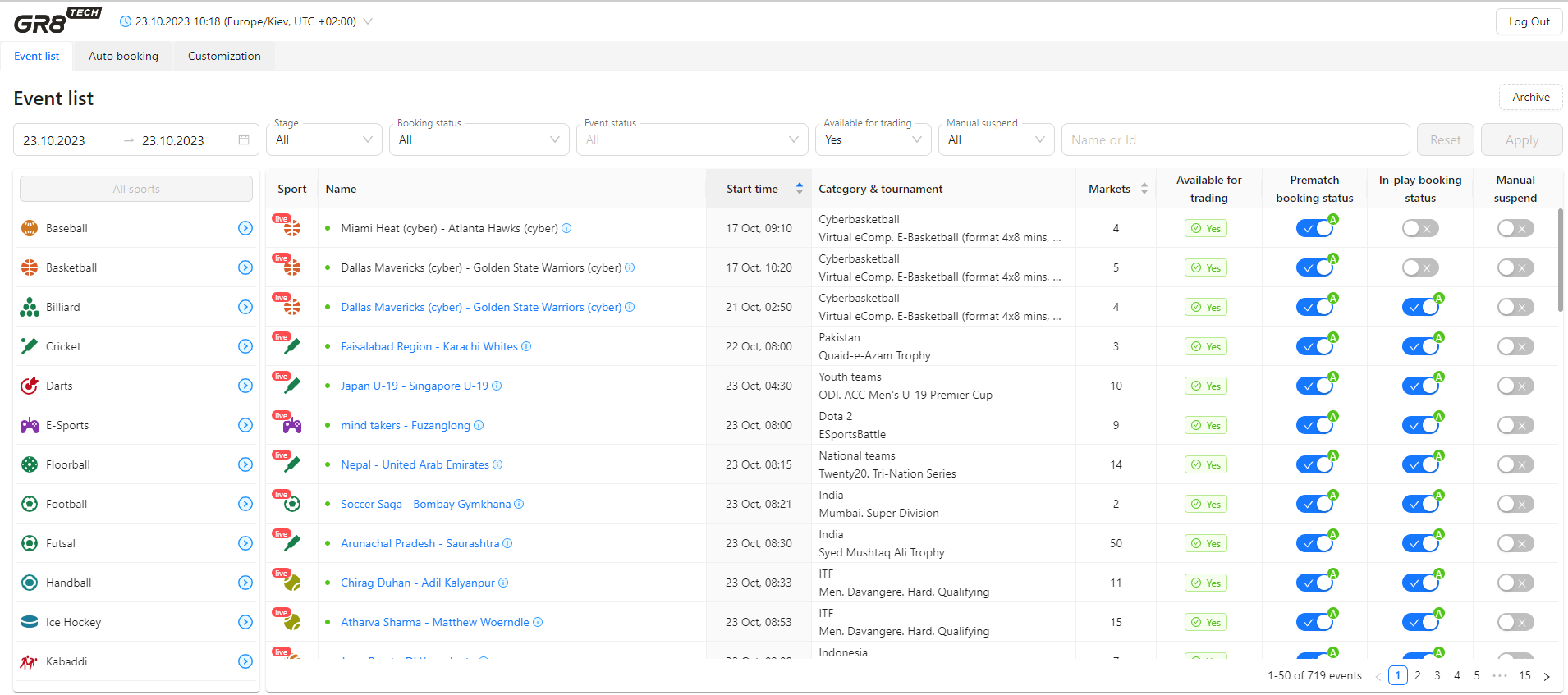
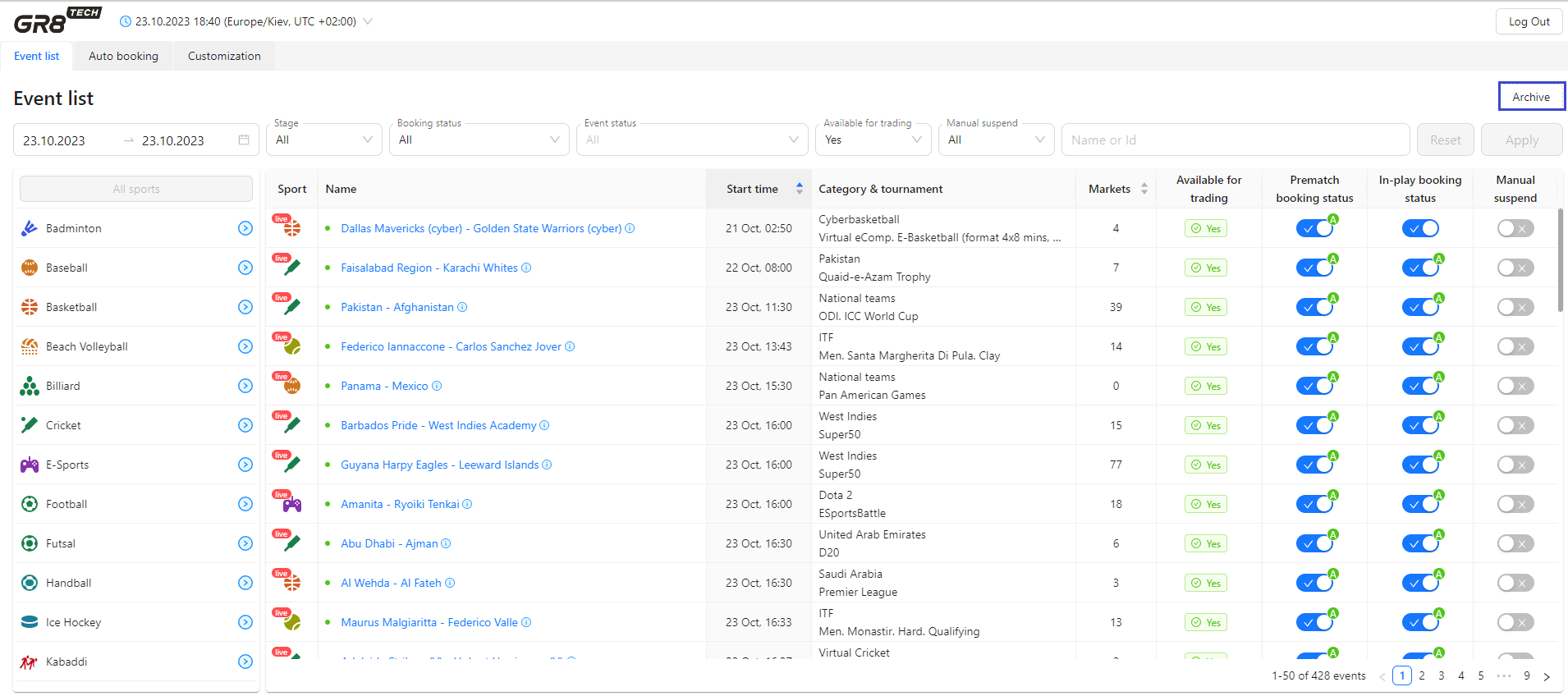
Resulting list of events based on user's filters + Sports navigation will be shown as a following table.
The whole list of events is divided by pages (based on event's start date/time) to be chosen at bottom right corner.
Order of events displaying - based on events start date/time increasing.
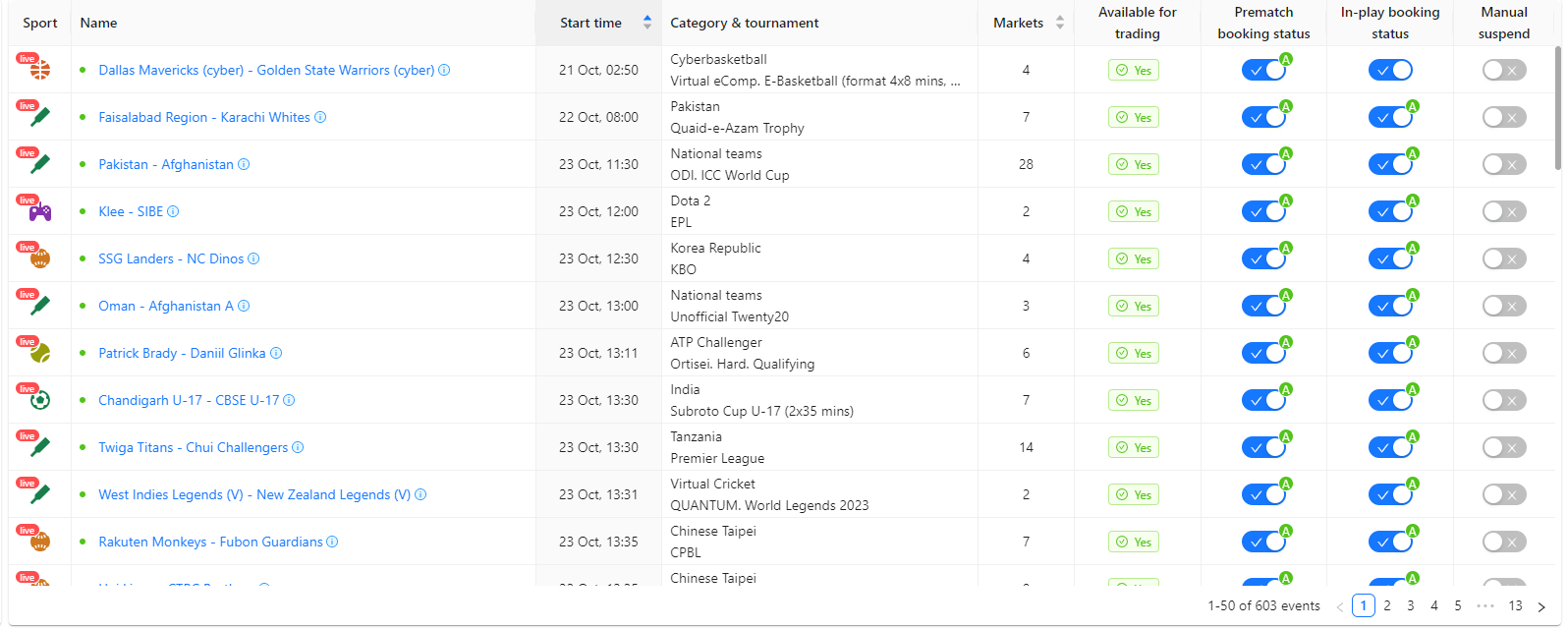
Each line of the table represents info about specific event, matching filter conditions and sports navigation choice.
Each event has following attributes (columns):
1) Sport - either sport chosen at taxonomy at the left side-bar, or all sports
2) Event status - depicted by colored dot next to event name. Color
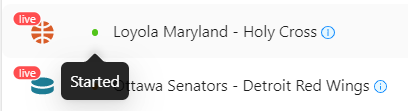
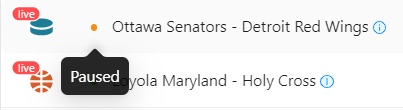
Meaning of each color could be found in Event status filter
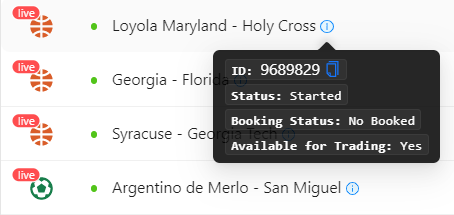
3) Event Name
Pressing hint "i" will bring pop-up message with EventID (available for copying) and main event info.
4) Start time
Date and time of event start. Is calculated based on chosen by user time-zone.
Thus, upon changing it by user (to track events of specific time-zone) - event's start date/time will be recalculated. This may result to changes in list of events
Could be sorted ascending and descending
5) Category and tournament
6) Markets
Shows quantity of available markets for this event. Provides argument to take decision for event booking.
Could be sorted ascending and descending
7) Available for trading
Shows availability of each event for trading. It is taken into consideration both: availability of Prematch / In-play and event status (match is not finished / cancelled yet)
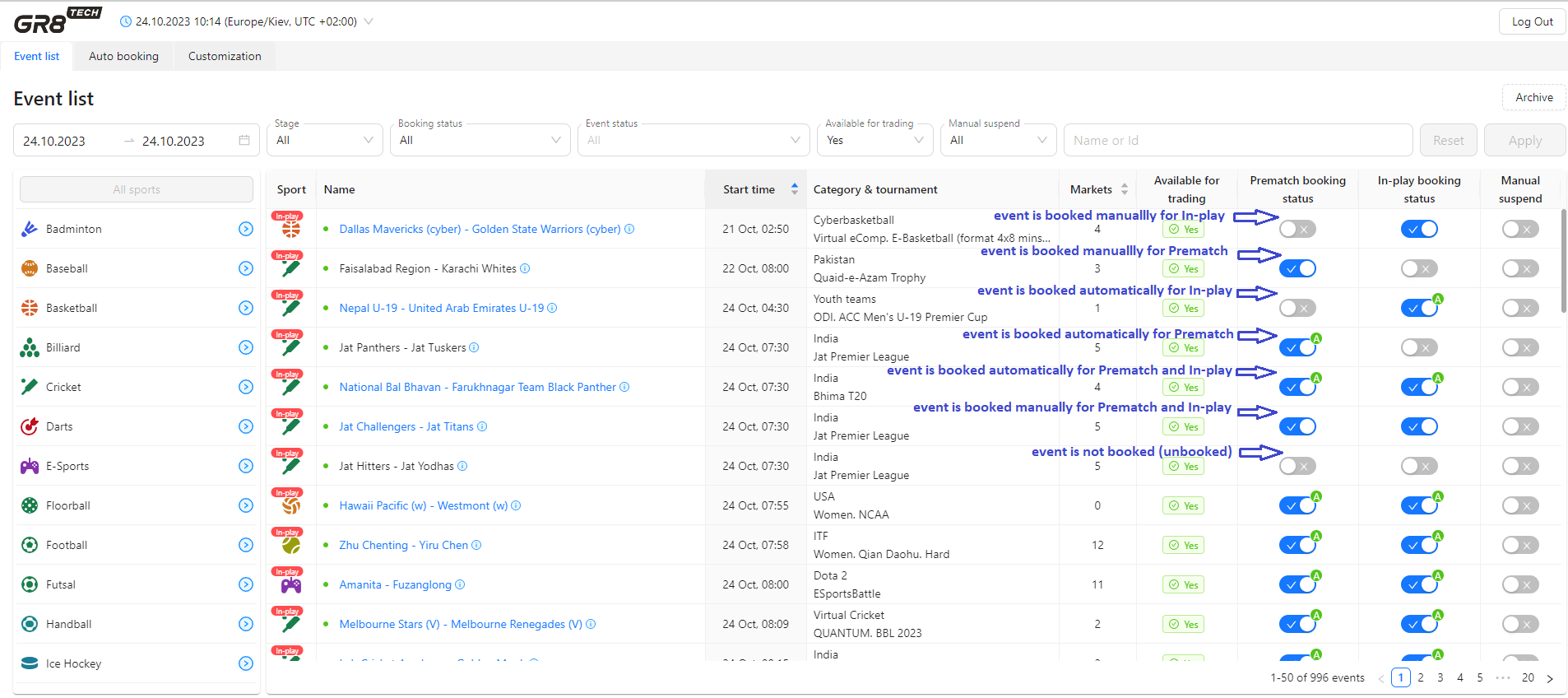
8) Prematch booking status and In-play booking status
Togglers, showing whether event is booked or not for Prematch and/or In-play trading stages.
User could use it for manual event booking/unbooking for Prematch and/or In-play stage, by switching toggler and confirming intention.
Booking and unbooking for these 2 stages is independent: event could be booked for one of 2 stages, booked for both, or be unbooked for both.
- - if Prematch booking status = Booked, respective toggler is "On" (blue) and event is marked by blue font
- - if In-play booking status = Booked, respective toggler is "On" (blue) and event is marked by blue font
- - if Prematch booking status = Not Booked (respective toggler is "Off" (grey)), and In-play booking status = Not Booked (respective toggler is "Off" (grey)) - event is marked by black font
- - event can be booked (so Booking status = Booked) either manually or by autobooking rules - it stands for both, Prematch and In-Play). In both cases respective toggler is "On" (blue), but for autoboooked events label "A" is displayed (as mark of auto-booking)
- - if event is marked by blue color - it means that it is booked, so user can check it's details (gets into Event View by clicking on event's name)
- - if event is booked only for Prematch stage, but now match is already in In-play - then Event View is not available (as booked trading stage is over, it's needed to book In-play to get into event's details)
Note
If the event was ever booked manually or by auto-booking rules (either In-play, or Prematch), we will provide results of event's markets even in case of event's unbooking.
This is needed for bets settlement (if there were any bets before unbooking).
9) Manual suspend
Indicates, whether event is manually suspended for trading - according to business decision of the user.
Means, trading data are still fetched and provided, event is technically available for trading, but there's business need to freeze trading of this event on client's side (fraud detected, abnormal bet activity, etc). This could be used as feature to process on client's front-end to stop bet accepting from players.
Feature to be used by client to suspend trading of the specific event on client's side in case of business-need.
Manual suspension is done by user via toggler, showing whether event is suspended or not - with respective confirmation:
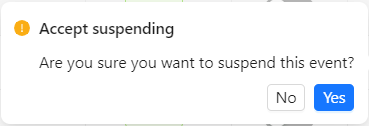
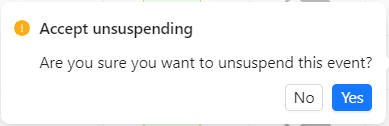
Suspend status is shown by toggler:
- if Manual Suspend = Suspended, toggler is "On"
- if Manual Suspend = Not Suspended, toggler is "Off"

After confirmation to suspend event - all markets of this event will be suspended until user will release trading of the event.
In the same time - providing of all feed data for event will not be stopped. Just additional indicator for manual suspend will be added (flag "isFrozen"=true for markets) - to be processed on client's side in order to disable markets for players.
2.6. Archive
Available by pressing button "Archive".
Functionality allows to see archived data for ended events ever booked (even if were unbooked afterwards) within 1 month depth.
Also includes possibility to view Event Updates, Markets updates and Scoreboards history, and download respective json-files (if necessary). This might be helpful for incidents tracking and resolving.
Detailed description is in separate document for History data in B2B-console
3. Event View
Contains information about markets, odds, results, scores, periods.
Event View is available if event is booked (either manually or autobooked) for any of the trading stages: In-play or Prematch.
Note: Event View of the events, booked only for Prematch, will be unavailable at In-play stages (if event is booked only for Prematch - then after match launch for In-play stage, Event View will become unavailable).
By clicking on the event, user gets into Event View - "monitor" of the event.
To get back from Event View to the Event's list - button "Back" in upper left corner to be pressed
General view is as following:
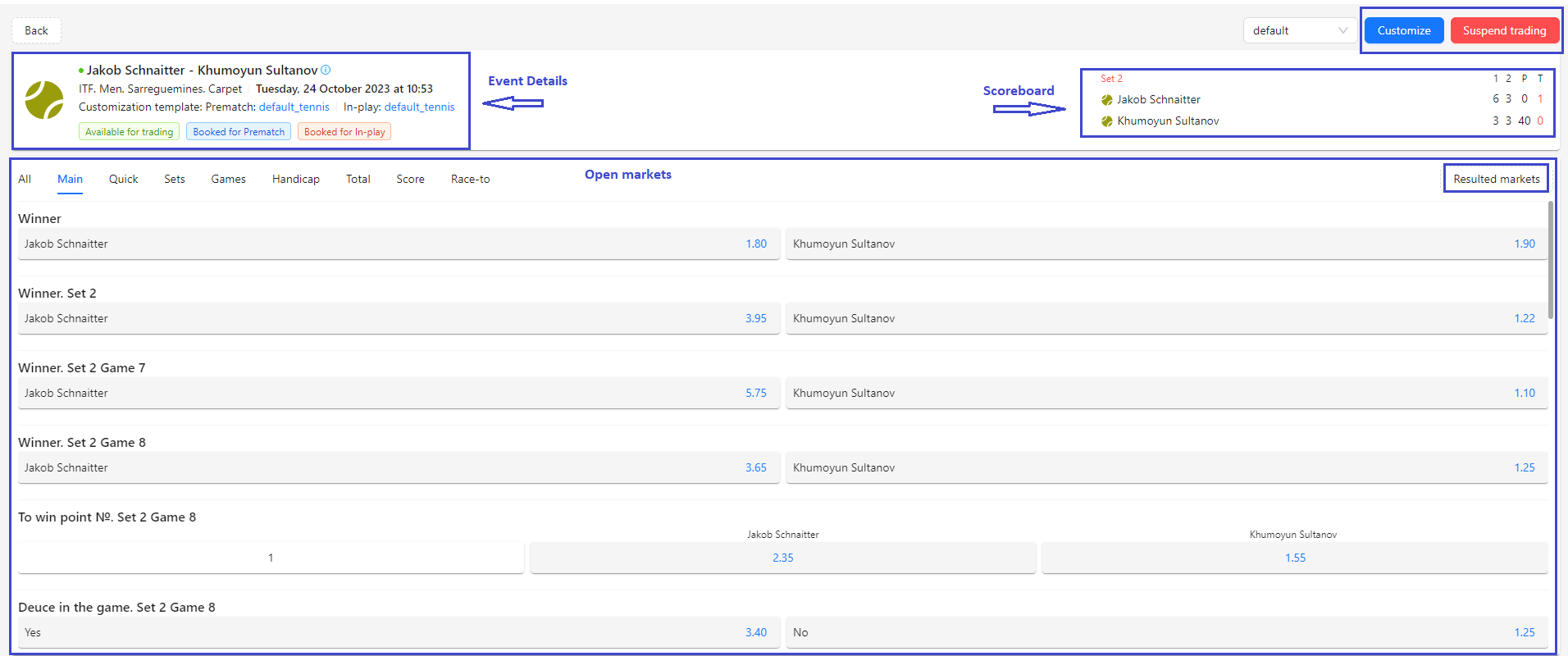
Event View contain following information:
1. Details of the event:
- Event Name
- Event's Sport, Category, Tournament
- Event's Start Date/Time
- name of customization template, applied to event for Prematch and In-play
- Indicators (labels) for trading availability, booking status for Prematch and/or In-play
2. Option to suspend trading of the event (and all markets as well).
This could be used for cases, when trading of the event should be "paused" for a while, and bets accepting to be "frozen" (upon user's decision for business case of frauds, e.g.).
Manual suspending of the trading on Console allows to process it at client's site in order to show markets as temporary unavailable for bets. Meanwhile, providing of all feed data for event will not be stopped. Just additional indicator for manual suspend will be added - to be processed on client's side in order to disable markets for players.
To use this feature - following button at right-up corner to be pressed (with confirmation upon pressing):
- Button "Suspend trading" (red) → makes trading of the event suspended
- Button "Resume trading" (blue) → resumes trading of the event
3. Customization of the event:
- possibility to review actual customization template, applied to event for Prematch and In-play stages
- option to apply another customization template for this event to any stage
Detailed description of customization functionality - is at document for Feed Customization
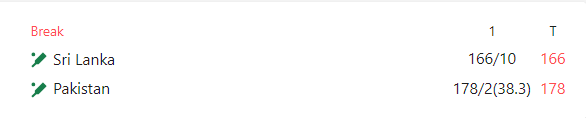
4. Scoreboard
- period of the event (break, half, etc)
- score per period
- total score
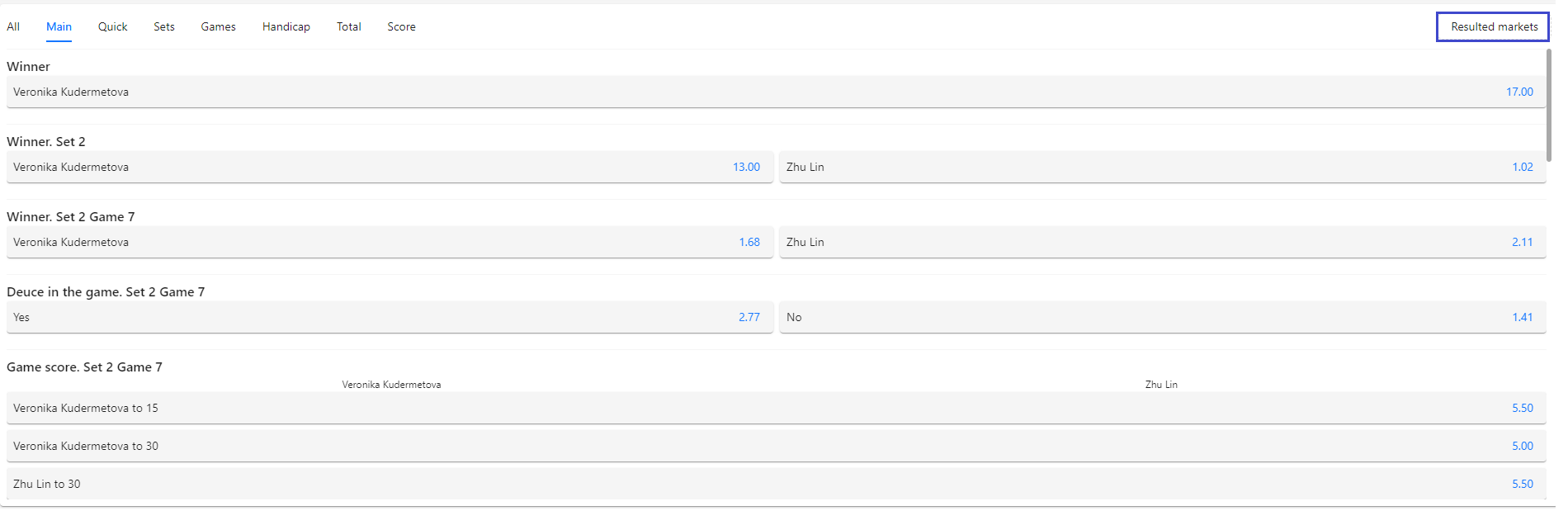
5. Open markets
Tab "All" contains available markets for the event. Other tabs contain markets, aggregated in respective groups.
Each market tab contains:
- markets per periods (available for bets)
- trading positions / outcomes (available for bets)
- odds. Prices for open outcomes are marked by blue (available for bets` placement), prices for "not open" outcomes are marked by grey (temporarily state, showing that for some reason trading is suspended. Thus, strongly not recommended to accept bets until outcomes will get open for bet again)
- pagination for each 50+ markets
6. Resulted markets
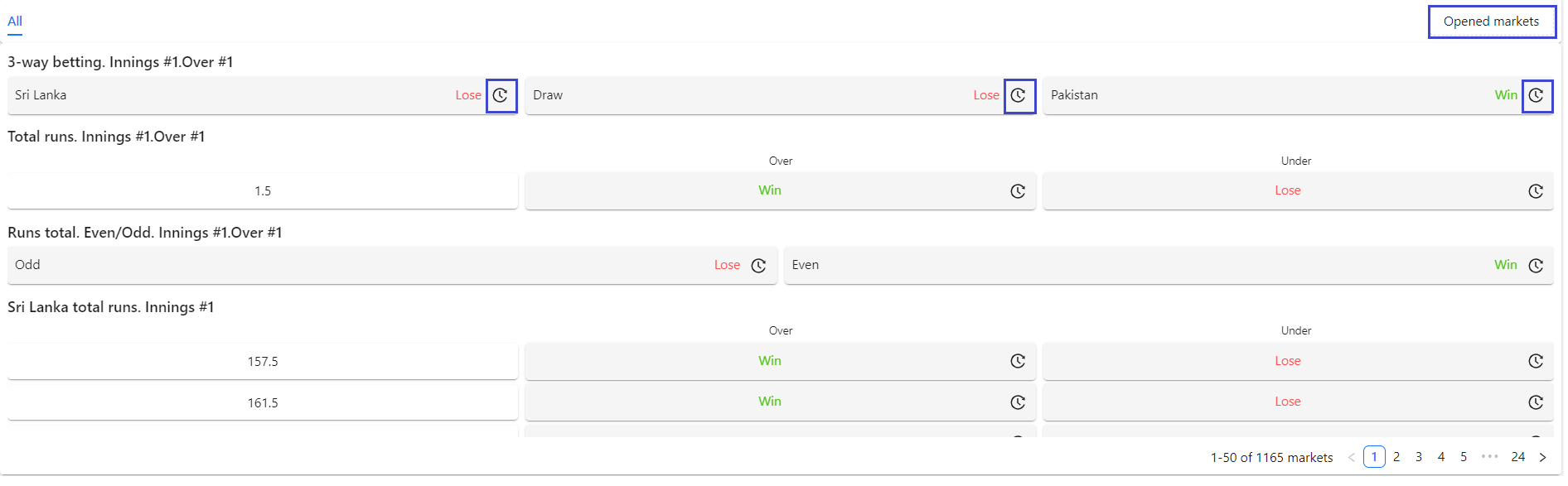
List of resulted markets of the event available after pressing button "Resulted markets"
- markets (resulted)
- trading positions / outcomes (resulted)
- results of each outcome ("Win" by green, "Loose" by red)
- pagination for each 50+ markets
To get back to opened markets - button "Opened markets" should be pressed
7. Market Timeline
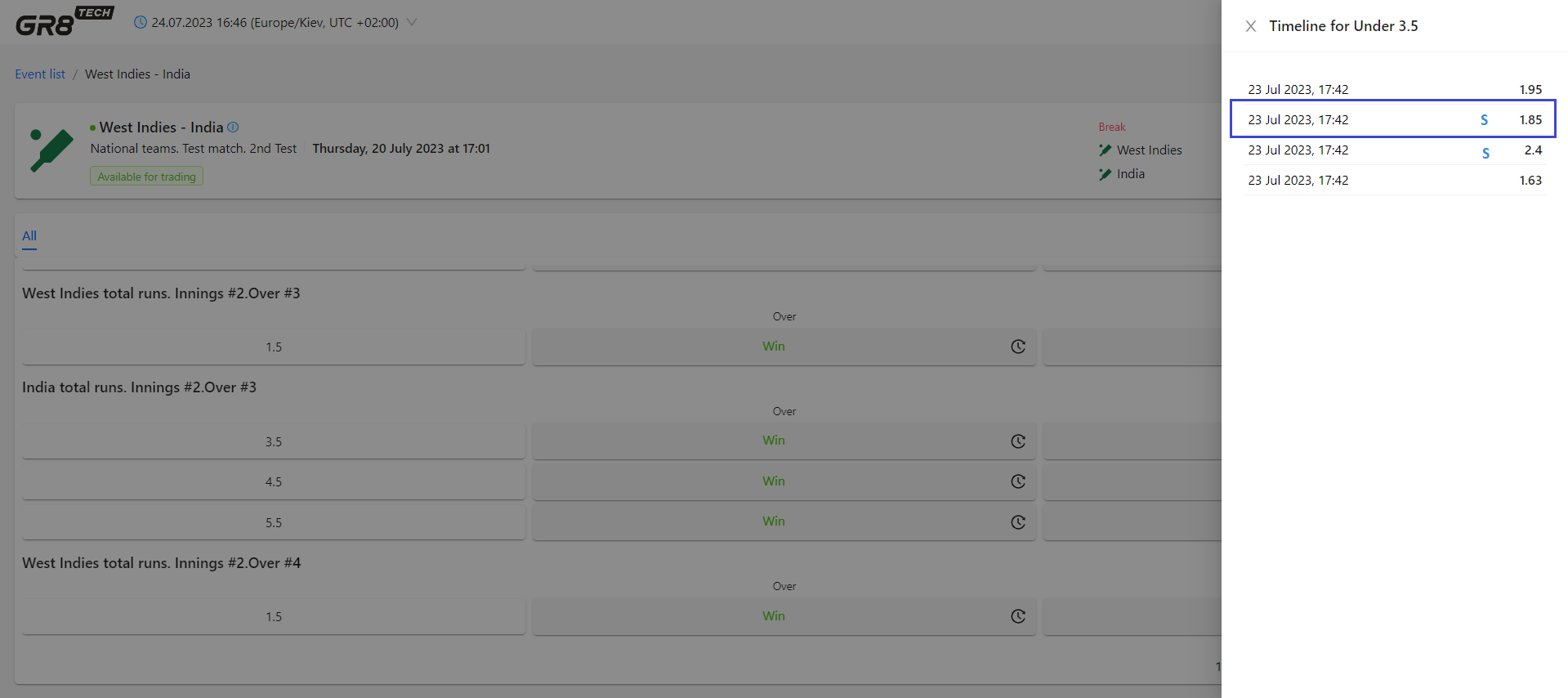
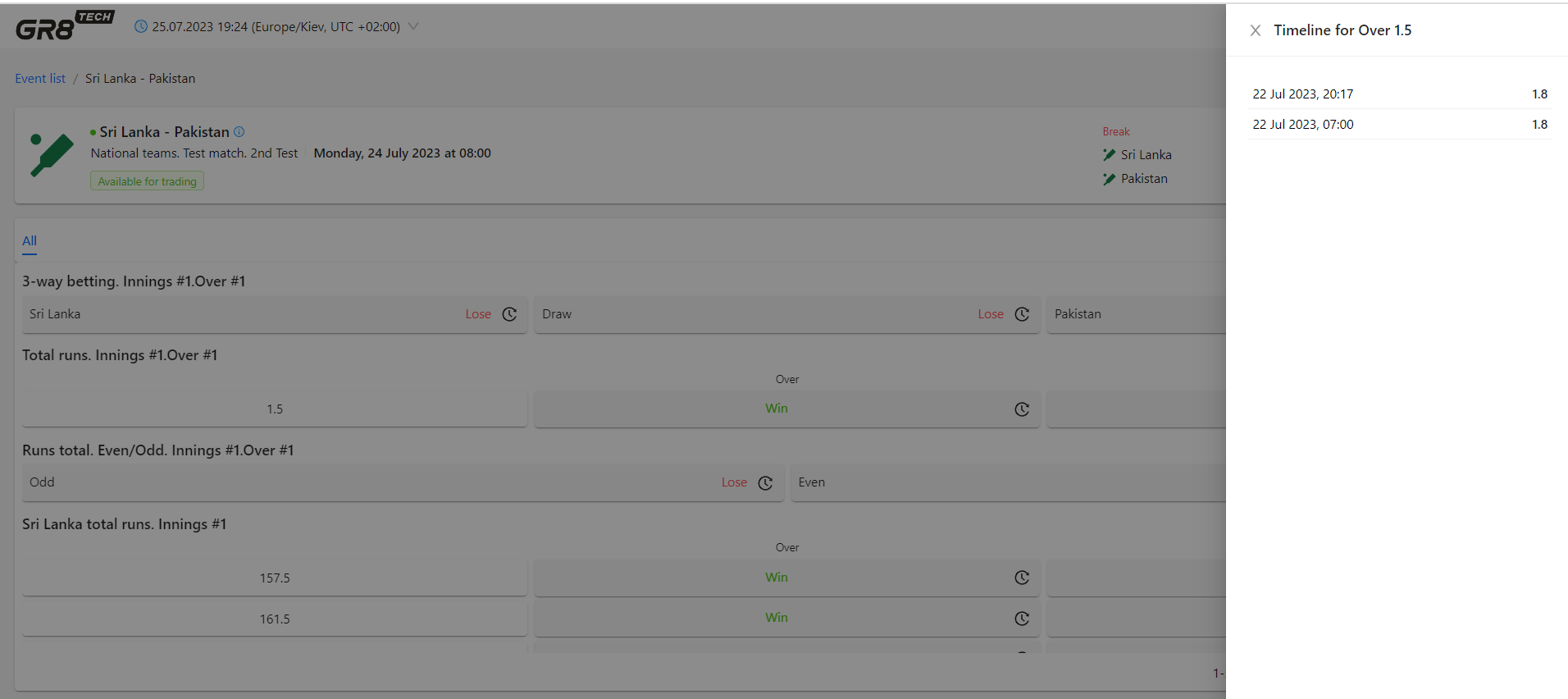
We provide functionality to track and check odds timeline. It is available by pressing clock-icon near each outcome of each resulted market.
Upon pressing - odds timeline appears.
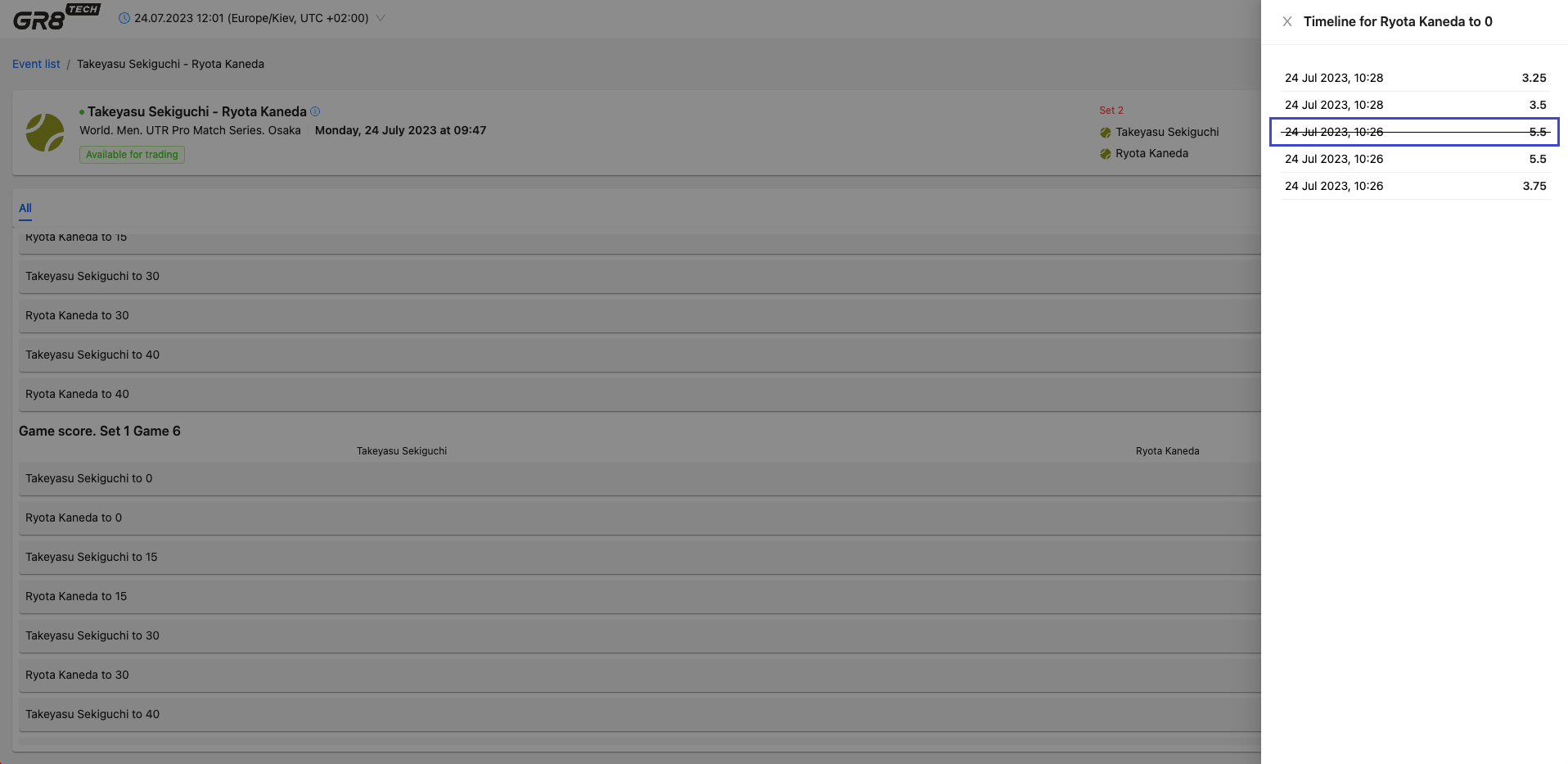
There could be following options for outcome's odds:
- • most common case - no exceptions for outcome. In this case odds timeline is like at the screen:
- • outcome was removed - thus odd is marked as strikethrough:
- • outcome was suspended - thus odd is is marked by letter S