Booking and etc.
Introduction
All events in feed and Console by default are not booked.
There are 2 options of booking:
- manually per event
- bulk - by creation of auto-booking rules specifying needed conditions (time period, sports, categories, tournaments, trading stage etc).
Events can be booked for each trading stage separately.
1. Manual booking
Booking of the separate events based on user's choice could be done by manual event's booking at Event List Tab.
It supposed for one-by-one event's booking.
Functionality includes:
- list of filter's to find events upon user's request (f.e., trading stage, start-time, team name, etc)
- sports navigation - to search events of specific Sport / Category / Tournament
- resulted list of events displayed based on user's choice (booked and not booked events are distinguished by color)
- toggler for Booking / Unbooking of the event for each stage (In-play, Prematch)
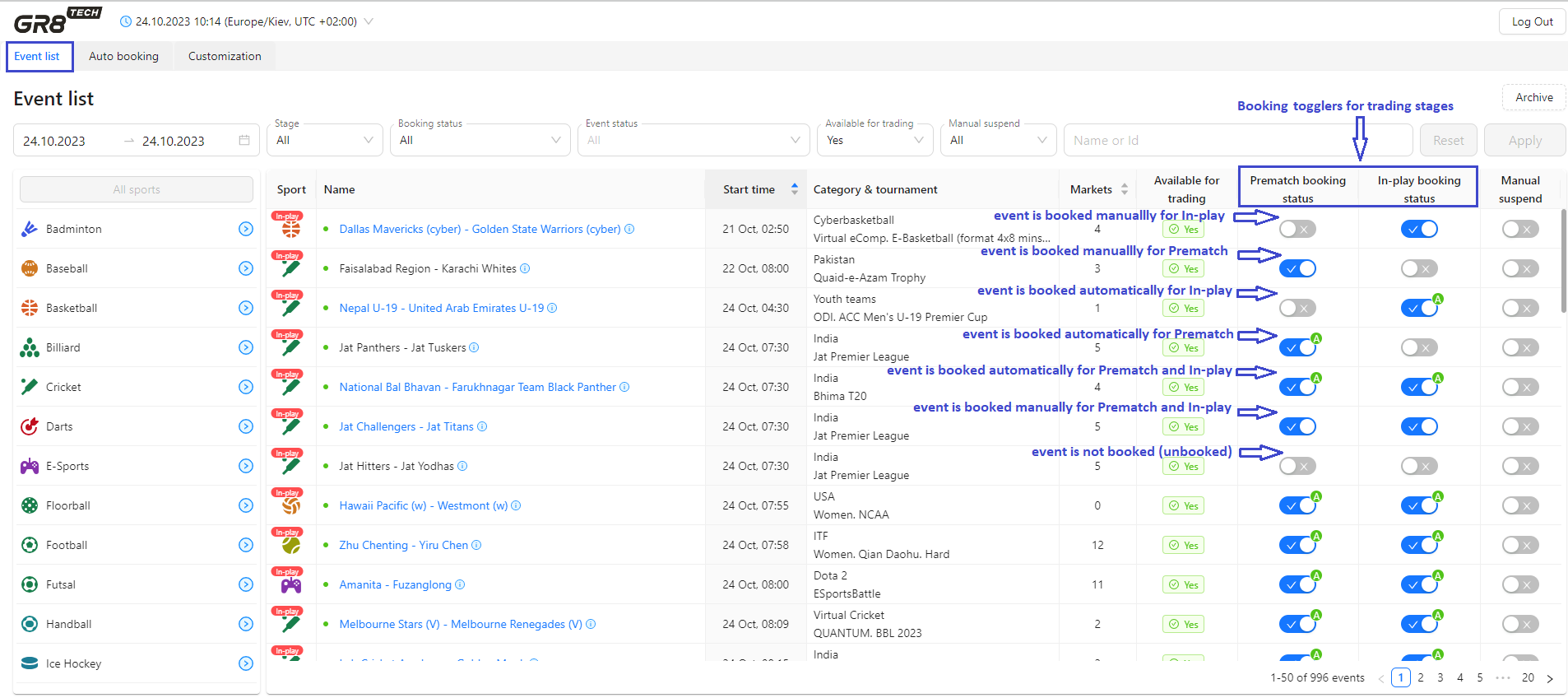
1. According to filters and Sport navigation set by user - respective list of events is displayed
2. List of events contain attributes (columns) " Prematch booking status" and "In-play booking status".
They show whether event is booked (toggler = On) or unbooked (toggler = Off) for respective trading stage.
3. Separate filter "Booking status" could be used to display booked / not booked events separately depending on trading stage:
- Booked for Prematch: to display events, which are booked for Prematch stage (either only for this stage, or for both stages In-play + Prematch)
- Booked for In-Play: to display events, which are booked for Prematch stage (either only for this stage, or for both stages In-play + Prematch)
- Booked (In-play + Prematch): to display events, which are booked for both stages In-play + Prematch
- Not Booked: events, not booked at all
- All: all events, despite booking status
4. Events are marked by blue or black font, depending on their booking status for trading stage:
- • if Prematch booking status = Booked, respective toggler is "On" (blue) and event is marked by blue font
- • if In-play booking status = Booked, respective toggler is "On" (blue) and event is marked by blue font
- • if Prematch booking status = Not Booked (respective toggler is "Off" (grey)), and In-play booking status = Not Booked (respective toggler is "Off" (grey)) - event is marked by black font
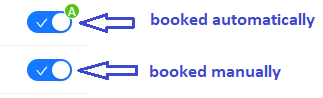
- • event can be booked (so Booking status = Booked) either manually or by autobooking rules - it stands for both, Prematch and In-Play). In both cases respective toggler is "On" (blue), but for autoboooked events label "A" is displayed (as mark of auto-booking)
- • if event is marked by blue color - it means that it is booked, so user can check it's details (gets into Event View by clicking on event's name)
- • if event is booked only for Prematch stage, but now match is already in In-play - then Event View is not available (as booked trading stage is over, it's needed to book In-play to get into event's details) and event is marked by black color.
5. Event View mode (Event Monitor with detailed information) is available only if event is booked .
Feed data are not updated for not booked events as well - except of markets' results.
If event was ever booked (and even unbooked afterwards) - we'll provide market's results for bets settlement (there could be bets placed while even has being booked).
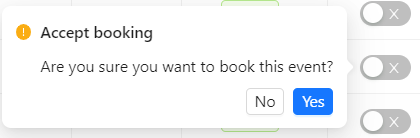
6. To book event it's needed to switch-on booking toggler and to confirm booking:
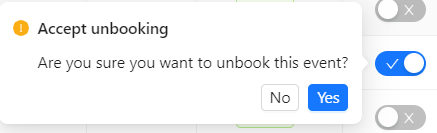
7. To unbook event it's needed to switch-off booking toggler and to confirm unbooking:
8. Event is available for both booking & unbooking (per event, and via autobooking rules as well) while it is present in Events List Tab (until In-play trading is not ended).
2. Auto-booking
For bulk-booking of events based on Sport and/or Category and/or Tournament and other parameters - Autobooking of events could be used.
It supposed to be done via creation of booking rules (templates), which include events of chosen Tournament, Category, Sport and specific trading stage (In-play, Prematch).
All events, belonging to Sport / Category / Tournament and trading stage of the rule - will be booked automatically.
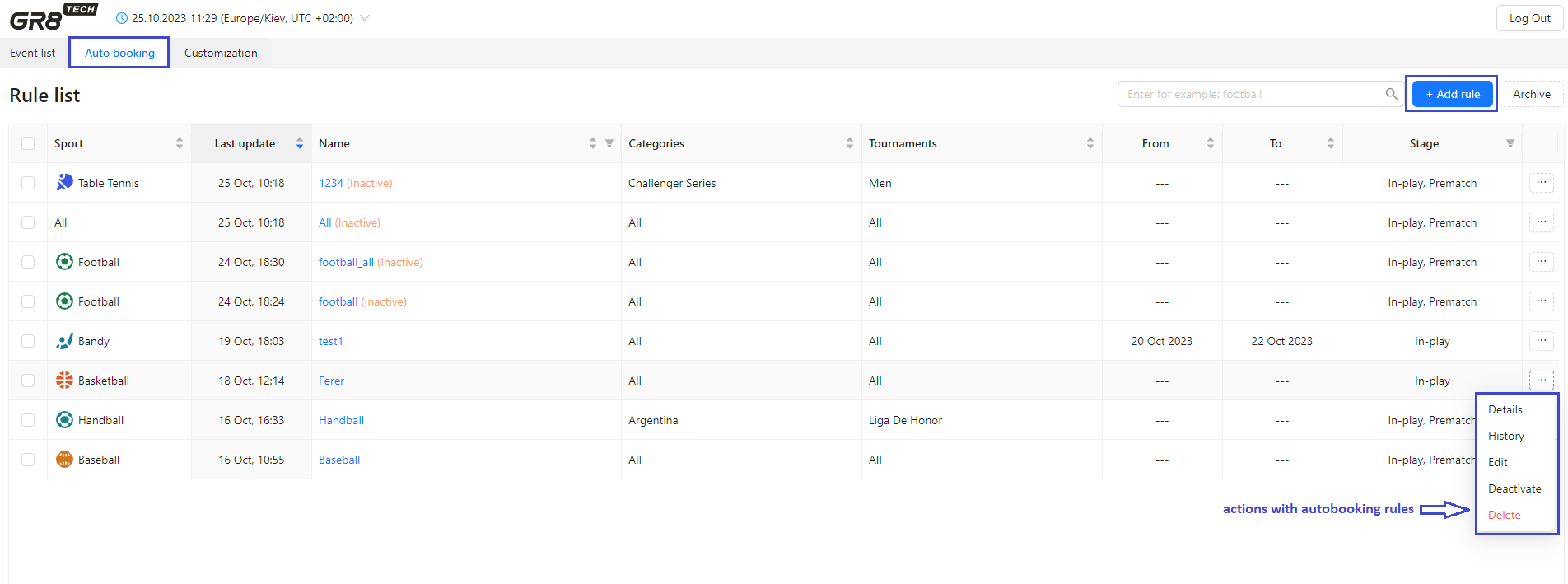
1. Separate Auto-booking Tab to be used for creation of rules for auto-booking (bulk events booking)
2. Tab contains table, with each row representing separate auto-booking rule with own parameters
3. Autobooking rule has following attributes:
- Name
- Stage: In-play, Premath, All
- Sport: one or all
- Category: one; multy-select, all
- Tournament: one; multy-select, all
- Date range "From ↔ To": defines the time frame for the event's start date to be booked.
Important!!! Event's start time is taken based on UTC(0), despite time-zone, chosen by user. This is needed for completeness and consistency of events, booked by all autobooking rules (created by users of all time-zones).
- Autobooking rule activity state (Active = True / False) - to define whether the auto-booking rule will be activated immediately after creation
4. Displaying of autobooking rules:
- • each new created/updated rule comes on the top of the list of rules
- • sorting (for each column of the grid) and search options could be used to find specific auto-booking rule
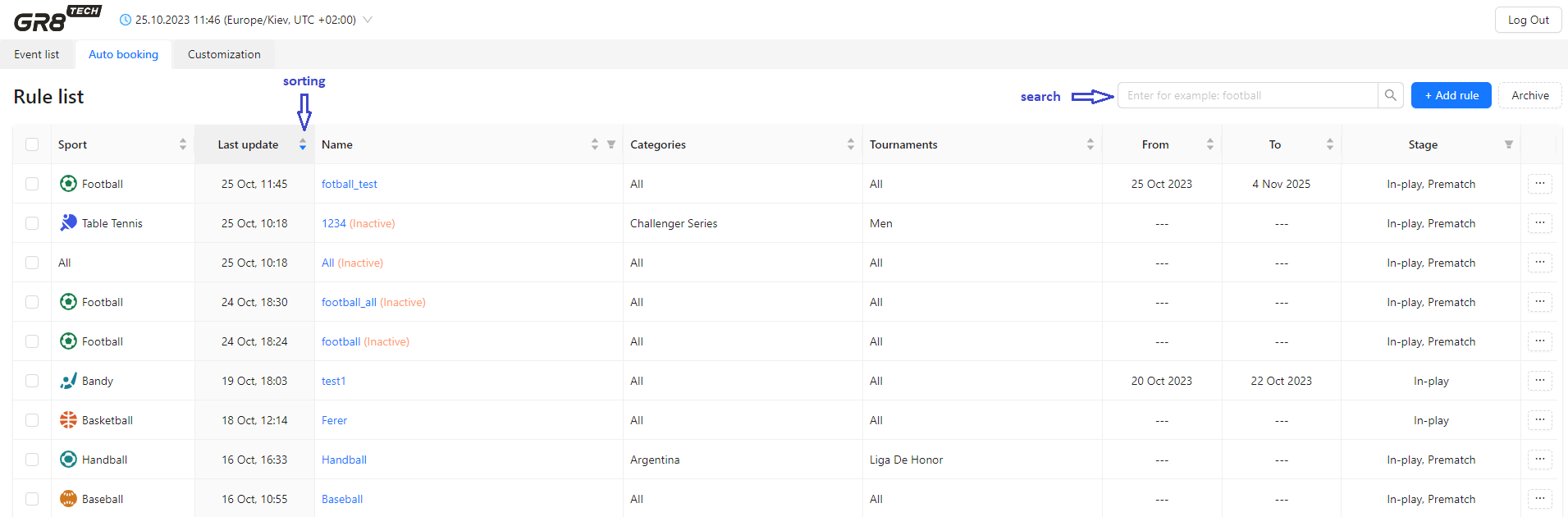
- • if list of categories / tournaments in auto-booking rule is too long to display - preview option could be used to check all details of specific rule.
Details are available either by clicking on auto-booking rule name, or by choosing "Details" in context menu
5. Possible actions with auto-booking rules:
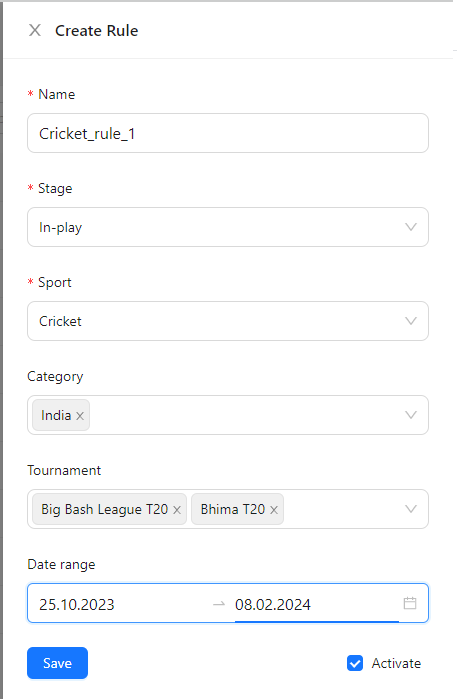
5.1. Create Rule:
Following parameters to be defined by user:
- Name (must): should be unique for each autobooking rule
- Stage (must): to choose trading stage, needed for booking - In-play, Prematch or All
- Sport (must): only one to select, or All sports
- Category (optional): should be chosen category of defined sport.
Possible values: one; multy-select from available categories of chosen sport; all categories of chosen sport
- Tournament (optional) of the chosen category.
Possible values: one; multy-select from available tournaments of chosen category; all tournaments of chosen category.
Multi-selection of tournaments is available if only 1 category is selected.
If several categories are selected, the tournament multiselect is disabled, and all tournaments of all selected categories will be included into auto-booking rule as well.
- Date range (optional): defines the time frame for the event's start date to be booked.: Start Date ↔ End Date
- Activity status of the rule after creation (Activate = Yes / No).
Defines whether the auto-booking rule will be activated immediately after creation
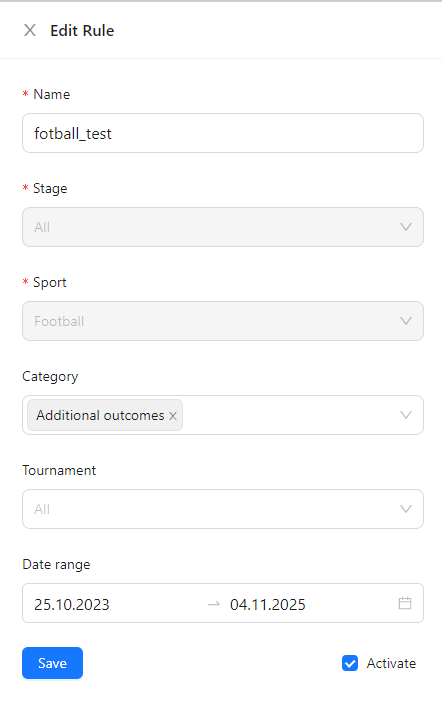
5.2. Edit Rule:
- Name
- Category
- Tournament
- Start Date, End Date
- Change Activity status of the rule (Activate = Yes <-> No)
!Note: editing of the Sport and Stage is not available, as this is considered as new rule creation
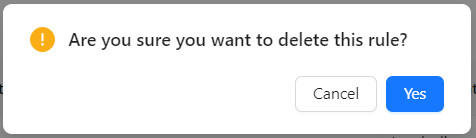
5.3. Delete Rule:
- is performed based on user's confirmation
- autobooking rule disappears from the list after deletion
- upon autobooking rule deletion all events, booked by this rule - will become NOT booked any more
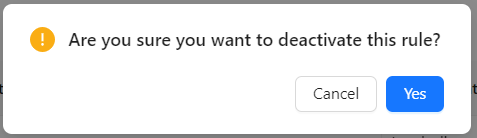
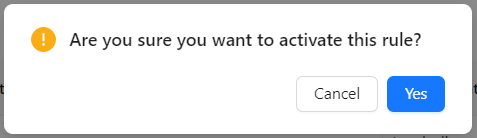
5.4. Activate / Deactivate rule
- is performed based on user's confirmation
- upon autobooking rule deletion all events, booked by this rule - will become unbooked
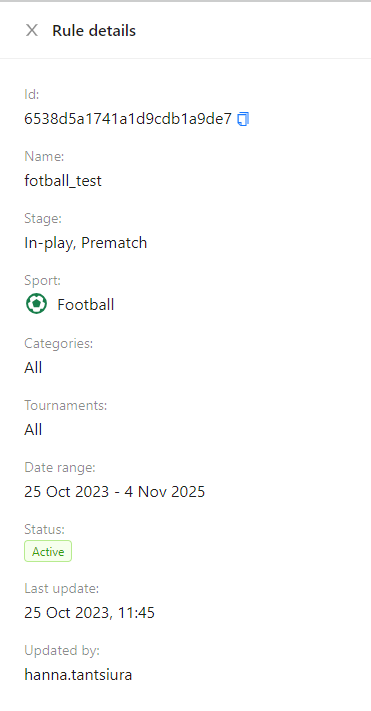
5.5. Rule Preview (Details)
- Possibility to review all rule details in separate window (name, sport, list of all categories and tournaments included, date range, etc)
- View-only mode: all attributes are disabled, no edit option
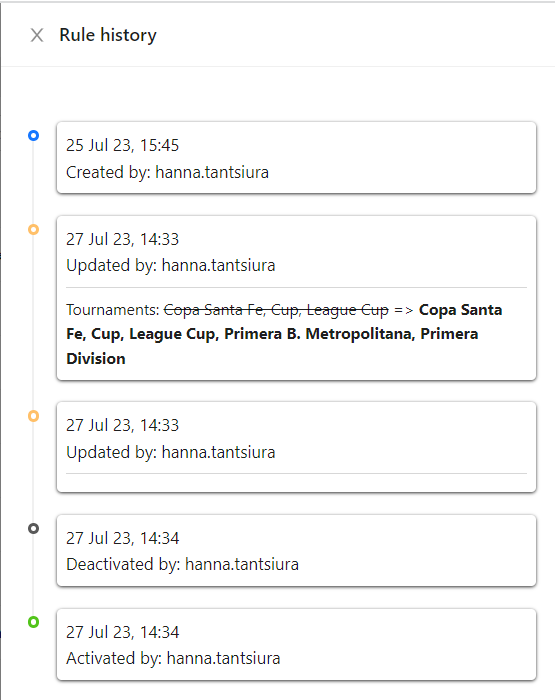
5.6. To review auto-booking rule history (creation, update, activation/deactivatio)- Rules History to be used.
It is available by choosing "History" in context menu
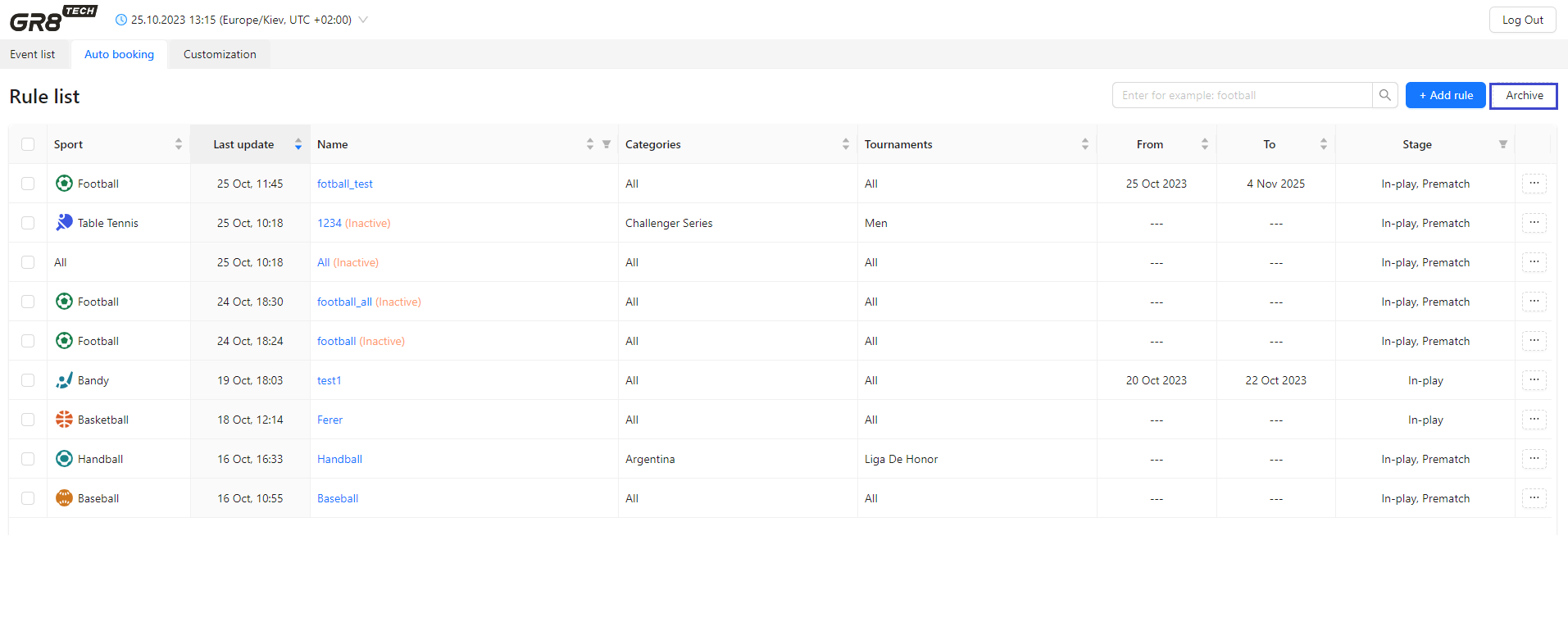
6. To review information about deleted autobooking rules - Rules Archive to be used
Accessed by pressing button Archive from list of autobooking rules.
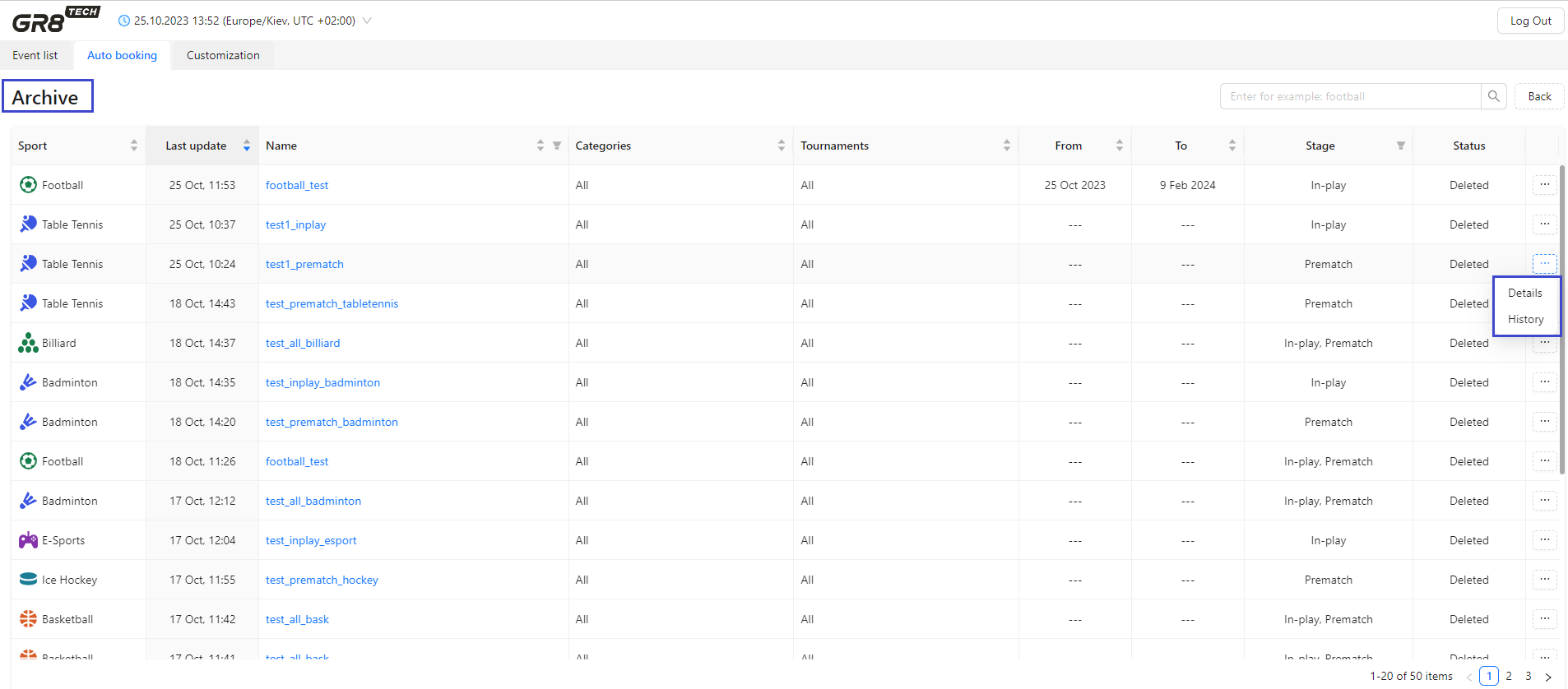
Archive contains list of all deleted auto-booking rules. By pressing button "Back" system redirects user to list of existing valid auto-booking rules. Pressing button "Rule list" will bring user to auto-booking rules list.
!! Rule's details and history is available for each deleted auto-booking rules also
7. All created auto-booking rules are available for all users
3. Correlation and interdependence Booking ↔ Auto-booking
1. Event could be booked either manually one-by-one from Event List Tab, or via creating / activation of Auto-booking Rule (in scope of bulk booking according by predefined by user automatic rules).
Each method results to booking of event / set of events (based on defined by trader rules).
2. Event could be unbooked either manually one-by-one from Event List Tab, or by deleting / deactivation of Auto-booking Rule
3. Event, booked automatically by auto-booking rule, could be unbooked manually from Event List Tab (by setting toggler "Booking status" for respective trading stage to Off).
And vice versa, event unbooked by autobooking rule (by it's deletion or deactivation) - could be booked manually at Event List Tab (by setting toggler "Booking status" for respctive trading stage to On).
4. As autobooking rules are created based on event's start-time by UTC(0) (despite chosen by user time-zone) - then for manual unbooking events of chosen template following step is advised.
To search for respective events in Event List Tab - it's needed for user to chose UTC(0) in time-zone switcher. Some, events' start time will be recalculated, system will fetch and display all events with start-time by UTC(0).
Thus, user will be able to unbook related events.
5. If Sport, Category or Tournament is included in Auto-booking rule with mentioned trading stage (In-play, Prematch, All) - all related events of it will be booked automatically for chosen trading stage.
6. Event's booking state (Booked / Not Booked for In-play / Prematch / All) could be checked in Event List Tab (without tracking booking method: manual or automatic)
7. If event belongs to any active autobooking rule (by sport, category or tournament for specific trading stage), then at Event List Tab this event will receive booking state = Booked automatically (displayed as toggler "Booking status" = On for this trading stage)
8. All new events, appearing for the sport, category or tournament included into active auto-booking rule and satisfying the trading stage of the rule - will be booked automatically
9. After auto-booking rule deletion or deactivation, all related to it events - will be unbooked automatically with following exception. If events are “covered“ by other autobooking rule or are booked manually - they will remain booked.
10. If event was booked once (despite trading stage: In-play or Prematch), and after that event became unbooked - results of this event will be sent anyway.
This is needed for correct settlement of the event according to actual results (as event was booked, there could be bets accepted, thus needs to be settled).
11. To separate events, booked manually and by autobooking rules, there's label "A" for auto-booked events on toggler of booking status. So distinguishing is: without "A" - booked manually, with "A" - booked automatically